We are the most popular brand for Giveaways, WordPress Plugins & WordPress Themes.
All Download Files
Request Themes & Plugins or Get New Updates
Can’t find your favorite WordPress item? Submit a request above, and we’ll add it to our repository!
Important: Extract Before Uploading
After downloading a file from our website, unzip it first. The main zip file may contain additional folders like templates, documentation, or other resources. Ensure you upload the correct file to avoid errors.
How to Install Plugins
How to Install Themes
Request Themes & Plugins or Get New Updates
Can’t find your favorite WordPress item? Submit a request, and we’ll add it to our repository!


Buy Latest Version & Future updates
$10.00
$2.99
Join Our Membership to Access All Products
Download this and 12000+ Plugins & Themes as a premium member for only $7.99.
Astra by itself is a fast, flexible theme. The moment you need repeatable layout control across a site, though, the free theme starts to feel like a collection of “almost” settings. Astra Pro Addon is the switch that turns Astra from a good starter theme into a theme framework you can standardize across projects.
I first installed it on a client site that had grown messy. Different page templates, inconsistent headers, and a blog layout that looked fine on desktop but broke the visual hierarchy on mobile. With Astra Pro Addon, we stopped patching issues with CSS snippets and started controlling layout rules at the theme level.
The important expectation to set is this. Astra Pro Addon does not replace a page builder, and it does not magically “design” your site. What it enables is clean, centralized control of headers, typography, spacing, blog and archive layouts, and WooCommerce presentation so you can stop fighting defaults.
The biggest win is consistency. You can define how containers behave, how titles and metadata render, what a header does on scroll, and how different content types should look without reinventing the wheel per page.
Where people overestimate it is “full site editing.” If you want block-by-block theme templates like a block theme, you will still be working within Astra’s approach. Astra Pro Addon improves Astra’s controls. It does not convert the theme into a different paradigm.
In practice, I recommend it when a site has multiple content types or multiple stakeholders. If you are the only editor and the site is five pages, you may not feel the return immediately. The Astra Pro Addon works best when used alongside Astra Starter Templates, unlocking advanced customization options that let you fully control layouts, headers, footers, typography, and colors across imported Astra templates.
On real sites, CSS debt grows from small exceptions. A different header on landing pages. A thinner container on posts. A footer that needs one extra column only on certain pages. Astra Pro Addon is useful because it gives you more native levers before you reach for custom CSS.
We used it to standardize container widths and spacing rules across blog, pages, and WooCommerce templates. That alone removed several “mystery” padding overrides that had accumulated over time.
If you work with multiple plugins that inject frontend UI, tighter control over typography and spacing can also prevent the site from looking like a patchwork. It will not fix third-party styling, but it gives you a consistent baseline.
The most common issue is enabling too many options at once and then trying to debug a layout change without a baseline. Astra Pro Addon expands the number of toggles, and it is easy to forget which module changed what.
My rule is to enable only what you need for the current milestone. If you are fixing the blog layout, do not also overhaul headers and WooCommerce in the same pass. When something breaks, you want a short list of suspects.
Another frequent snag is caching. After activating Astra Pro Addon, people change typography or header behavior and assume the plugin “didn’t work.” In reality, a page cache or minified CSS file is serving old styles. Clear caches aggressively during the first hour of configuration.
On stores, Astra Pro Addon is less about “design flair” and more about reducing friction in product discovery. Cleaner shop archives, more predictable product page spacing, and better control over sidebars and layout often translate into fewer layout hacks.
We had one store where the cart and checkout looked fine, but category pages felt cramped and inconsistent across screen sizes. After tightening container rules and aligning typography, the store looked more trustworthy without touching the product content.
One caution from experience. If you are using a heavy WooCommerce customization plugin, test changes in a staging site first. Theme-level layout adjustments can expose assumptions made by other plugins, especially around sidebars and template hooks.
If your workflow is builder-first, you might think Astra Pro Addon is redundant. It is not, but the value shifts. A builder can create a great landing page, but it rarely enforces consistent archive layouts, post metadata rules, or global header behavior without extra work.
When we migrate sites off legacy themes, the biggest time sink is not page design. It is the repetitive configuration of templates, blog lists, and global elements. Astra Pro Addon helps you stop solving those problems per page.
If you only need a single custom header for one campaign page, a builder template might be enough. If you need a system that stays coherent as content grows, Astra Pro Addon is the cleaner approach.
If the site is live, clone it to staging. Theme-level changes can look small but affect many templates at once, including archives and WooCommerce pages.
Astra Pro Addon extends Astra. Make sure the Astra theme is installed and active before you proceed.
When you obtain the Astra Pro Addon download package, keep it as a ZIP file. Do not unzip it before uploading to WordPress.
Go to Plugins, then Add New, then Upload Plugin. Select the ZIP and install it.
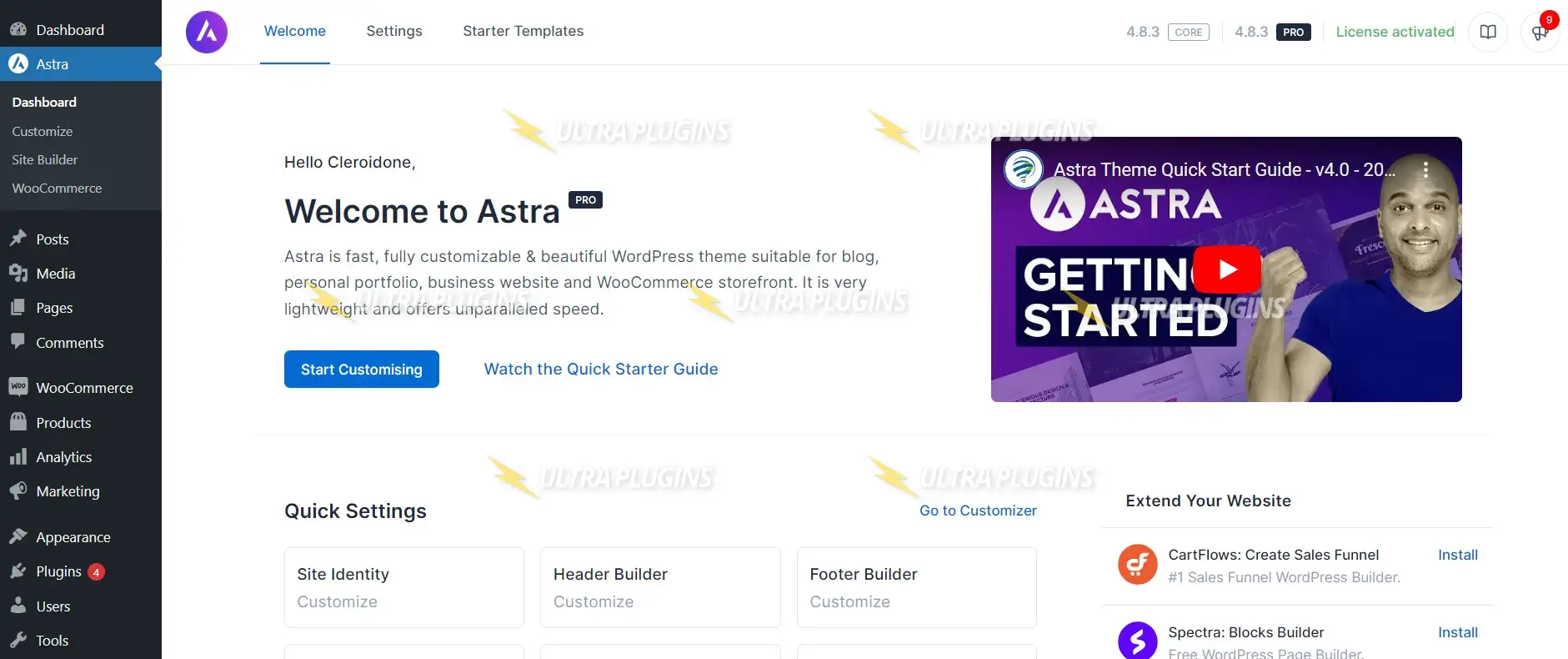
After activation, open the Astra options area in the WordPress Customizer or Astra settings panel. You should see additional controls or modules depending on your setup.
Clear any caching plugin, server cache, and CDN cache. If you use CSS/JS optimization, purge and rebuild files. This avoids false “it didn’t apply” troubleshooting.
Test a post, a page, an archive, and key WooCommerce pages if applicable. The plugin’s value is global control, so validate globally.
Astra Pro Addon adds capability, but it also adds decision points. If your team struggles with design consistency, too many options can lead to inconsistent choices unless you document your standards.
It can also surface conflicts with aggressive optimization stacks. I have seen minification and “remove unused CSS” tools mis-handle theme-generated styles after major layout changes. The fix was not complicated, but it required testing and sometimes excluding Astra-related files from certain optimizations.
Finally, if you are expecting it to provide niche features like complex conditional logic, dynamic data templating, or advanced role-based design controls, that is not its lane. You would pair Astra with other tools for those needs.
In most builds, the impact is small, but it depends on what you enable and how your caching and optimization are configured. The bigger performance risk I see is not the addon itself. It is stacking multiple styling and optimization plugins that fight each other.
Not always. If your site is mostly standalone landing pages, a builder can cover a lot. Astra Pro Addon becomes more valuable when you care about consistent headers, archives, blog templates, and WooCommerce layouts that stay consistent without per-page tweaks.
Usually caching. Clear page cache, object cache, and any CSS optimization cache. If you use a CDN, purge that too. I have also seen browser caching keep old CSS around during rapid changes, so a hard refresh helps.
Yes, but do it in staging first. The addon gives you more controls, and you might accidentally change defaults that were previously “locked in.” Test posts, archives, and WooCommerce templates, then roll changes out deliberately.
Geotoko is a trusted GPL website for WordPress themes, plugins, Shopify templates, and free giveaways. Download original, secure GPL files with lifetime updates.
All products on Geotoko are fully licensed under the GNU General Public License (GPL) and are independently reviewed for safety and quality.