We are the most popular brand for Giveaways, WordPress Plugins & WordPress Themes.
Request Themes & Plugins or Get New Updates
Can’t find your favorite WordPress item? Submit a request above, and we’ll add it to our repository!
Important: Extract Before Uploading
After downloading a file from our website, unzip it first. The main zip file may contain additional folders like templates, documentation, or other resources. Ensure you upload the correct file to avoid errors.
How to Install Plugins
How to Install Themes
Request Themes & Plugins or Get New Updates
Can’t find your favorite WordPress item? Submit a request, and we’ll add it to our repository!

Buy Latest Version & Future updates
$3.59
$2.99
Join Our Membership to Access All Products
Download this and 12000+ Plugins & Themes as a premium member for only $7.99.
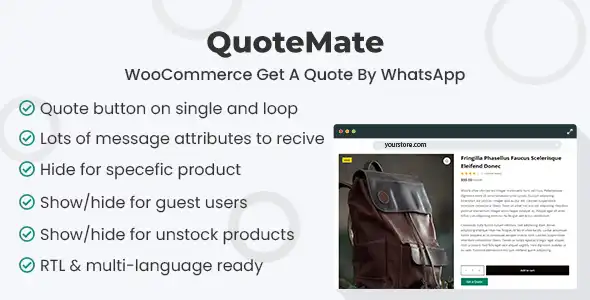
Most WooCommerce stores lose quote requests in the gap between browsing and contacting. Customers hesitate, open a new tab, or send a vague message that cannot be tied back to the product they were viewing. QuoteMate WooCommerce Get A Quote By WhatsApp is built to close that gap by pushing quote intent into WhatsApp with enough context to make the conversation actionable.
On live stores, I have seen the same pattern repeat: email-based quote forms get ignored, and “Call us” buttons create friction on mobile. WhatsApp is already where the customer wants to talk. The difference is whether the message arrives with product details, quantities, and a clear prompt, or whether your team has to play detective.
This plugin adds a “Get a Quote” style action that routes customers into WhatsApp, typically with a prefilled message. The practical win is not the button itself. The win is reducing back-and-forth by sending product context at the moment intent is highest.
When configured well, the customer taps once and lands in WhatsApp with a message that includes the product name, link, variation details, quantity, and possibly a short prompt like delivery location or timeline. That message becomes a lightweight lead record your sales team can respond to immediately.
What it does not do is replace a full quoting system with approvals, quote-to-order conversion, or CRM-level tracking. If you need formal quote documents, negotiated pricing rules, or multi-step approvals, you may still pair this with a dedicated quote workflow. QuoteMate is best understood as a conversion bridge, not a quoting engine.
On mobile-heavy traffic, WhatsApp requests are often the shortest path to a response. In practice, we saw higher completion when the user could stay in the WhatsApp app rather than filling a form, waiting for an email, then checking spam folders.
It is also a better fit for products where the customer cannot self-serve the final price. Think custom sizes, bulk discounts, shipping constraints, installation questions, or B2B procurement where “price depends” is normal.
One subtle benefit is tone. Customers ask more candid questions in chat than in forms. That can surface objections earlier, which helps your team qualify leads faster.
The default temptation is to keep the WhatsApp message short. In real deployments, too-short messages create overhead for your team. We fixed this by including just enough structure to avoid follow-up questions.
A useful message template usually includes:
1) Product reference so staff can click straight back to the item. A URL is often more reliable than a long product title alone.
2) Variant signals when you sell sizes, colors, packs, or add-ons. If your store relies on variations, test that the message reflects the selected variation rather than the parent product.
3) A question prompt such as “Please share your postcode and required quantity” or “Is this for business use?” This reduces the first reply time on both sides.
Routing is the second big decision. Some stores send everything to a single WhatsApp number. That works until you scale. If you have departments (sales, support, wholesale), consider whether the plugin supports different buttons by product category or page type. If not, you can still segment by using different templates and asking the customer to answer one routing question in the first message.
WhatsApp quoting looks simple, but a few edge cases show up quickly on real sites.
Cache and dynamic content. On one site with aggressive page caching, the button rendered fine, but the message content stayed “stuck” to a previous product. The fix was to exclude the dynamic product pages from certain full-page caching rules or ensure the message is generated client-side in a way the cache does not freeze.
Variation mismatch. If the user selects a variation and then taps the quote button, the message must reflect the selection. We had to validate this on variable products, not just simple products. Always test with at least two variations and confirm the message changes.
WhatsApp formatting surprises. Line breaks and special characters can behave differently depending on how the URL is encoded. If you see broken spacing or missing content, simplify the template and reintroduce fields one by one. Encoding issues are usually the culprit, not WhatsApp itself.
Analytics blind spots. A WhatsApp click is an offsite action. If you care about attribution, set up event tracking for the button click. Otherwise, you may “feel” like it works but cannot prove which products generate quote intent.
If your catalog is fully priced, shipping is predictable, and customers can checkout without questions, a quote button can distract from the cart flow. In those cases, improving product FAQs, shipping calculators, and checkout clarity often moves revenue more than adding a WhatsApp quote path.
Also, if your team cannot respond quickly on WhatsApp, you risk creating a worse experience than email. A quote button sets an expectation of near-real-time replies. If you cannot meet that, consider limiting the button to high-margin items or B2B categories only.
Get the QuoteMate WooCommerce Get A Quote By WhatsApp plugin file from a trusted source and keep it as a ZIP. If you are looking for “QuoteMate WooCommerce Get A Quote By WhatsApp download”, treat it like any other production plugin download. Verify you have the correct version and that it matches your WooCommerce and WordPress stack.
In your WordPress admin, go to Plugins > Add New > Upload Plugin. Upload the ZIP and install it.
Activate the plugin and then open a product page on the front end. Do this in an incognito window to avoid cached assets masking issues.
Set the WhatsApp destination number in the plugin settings. Then build a message template that includes at least product name and product link. If you sell variations, test that the selected options appear correctly.
Decide whether the quote action appears on product pages, shop loops, or both. Start with product pages only. It is easier to measure intent and reduces accidental clicks.
On mobile, confirm it opens the WhatsApp app. On desktop, confirm it opens WhatsApp Web appropriately. Test at least one simple product and one variable product.
If you use caching or a CDN, clear caches and retest message accuracy across multiple products. If you rely on analytics, add a click event for the WhatsApp quote button so you can see which pages drive requests.
It should, but you need to test it. On some setups, caching or variation handling can cause the message to miss the selected option. Always verify with variable products and confirm the product URL is included for reliability.
Many stores do this to avoid disrupting standard checkout items. If the plugin provides rules, use them. If not, you can often control placement via theme hooks, shortcodes, or conditional display logic, depending on how QuoteMate outputs the button.
International formatting usually works as long as the number is set correctly. Multiple reps is more about workflow than tech. If you cannot route by product or category, include a prompt in the message that helps your team triage quickly.
No. QuoteMate WooCommerce Get A Quote By WhatsApp is best for starting a conversation with context. If you need quote approvals, quote records, or converting quotes into orders inside WooCommerce, you will likely need a dedicated quoting plugin alongside it.
Track clicks on the WhatsApp quote button and compare them to product page sessions. Also watch response time and lead quality. In practice, faster replies tend to improve conversion more than changing the button text.
This is usually URL encoding. Simplify the template, avoid unusual characters, and add fields back gradually. If you paste the generated WhatsApp link into a browser and it looks heavily encoded, that is normal. The key is whether WhatsApp renders it cleanly.
Geotoko is a trusted GPL website for WordPress themes, plugins, Shopify templates, and free giveaways. Download original, secure GPL files with lifetime updates.
All products on Geotoko are fully licensed under the GNU General Public License (GPL) and are independently reviewed for safety and quality.