We are the most popular brand for Giveaways, WordPress Plugins & WordPress Themes.
Request Themes & Plugins or Get New Updates
Can’t find your favorite WordPress item? Submit a request above, and we’ll add it to our repository!
Important: Extract Before Uploading
After downloading a file from our website, unzip it first. The main zip file may contain additional folders like templates, documentation, or other resources. Ensure you upload the correct file to avoid errors.
How to Install Plugins
How to Install Themes
Request Themes & Plugins or Get New Updates
Can’t find your favorite WordPress item? Submit a request, and we’ll add it to our repository!

Buy Latest Version & Future updates
$10.00
$2.99
Join Our Membership to Access All Products
Download this and 12000+ Plugins & Themes as a premium member for only $7.99.
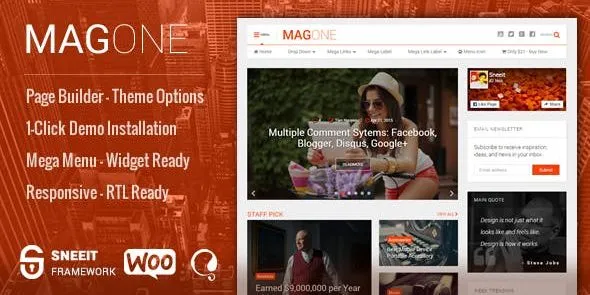
MagOne – Responsive Magazine & News WordPress Theme is built for sites that publish frequently and need the homepage to feel “edited” rather than chronological. The theme’s real value is not just that it looks like a magazine. It is that you can design multiple content lanes (top stories, latest, category blocks, trending, featured media) without rebuilding the layout every time the editorial mix changes.
On a live news-style site, the friction is rarely “how do I make it pretty.” The friction is “how do I keep the front page coherent when we publish 20 posts a day, rotate featured stories, and still want older evergreen pieces to surface.” MagOne is aimed directly at that problem.
When we first deployed MagOne for a client with multiple categories and a strict publishing schedule, the biggest win was predictable layout control. You can predefine sections that pull from categories, tags, or curated selections, then let editors focus on content instead of layout babysitting.
The trade-off is that the theme encourages you to lean into its homepage structure. If you later decide you want a minimal blog feed or a landing-page-first site, you may spend time undoing choices you made early. I have seen teams over-customize the first week, then struggle to keep it consistent once real publishing starts. Start with a conservative layout, then add blocks only when you know what your readers actually click.
MagOne fits best when you treat WordPress like a newsroom CMS. A few workflows that tend to work well:
Front page as a curated board. Use featured slots for the stories you want seen first, then let category blocks handle the long tail. This reduces the temptation to pin everything.
Category pages are “mini homepages.” If your site has distinct verticals (Sports, Tech, Business), MagOne-style layouts make those sections feel intentional rather than like filtered archives.
Media-first posts. For outlets that publish video recaps or photo-heavy coverage, the theme’s magazine layout approach usually supports richer thumbnails and tighter grids than a standard blog theme.
One practical note: editorial teams often forget that consistency comes from post formatting discipline, not from the theme. If authors upload wildly different image sizes, you will see uneven grids and awkward crops. Set a featured image guideline early.
Most “theme issues” I troubleshoot are really configuration collisions. With MagOne, the repeat offenders are predictable.
This usually happens after switching themes or changing thumbnail settings. Regenerate thumbnails after you settle on image dimensions, not before. Also, check that your image compression plugin is not over-aggressive on smaller sizes.
If you pull “Latest” plus multiple category blocks, you can easily surface the same post three times. The fix is editorial logic: reserve “Latest” for truly recent posts, then set category blocks to exclude the primary featured category, or curate the top slot manually so it does not reappear below.
Magazine grids can collapse awkwardly when too many sections stack. If your homepage is long, mobile readers will bounce. We typically reduce the number of blocks on mobile by simplifying the layout and prioritizing one strong featured section plus two supporting lanes.
It is easy to keep adding “just one more” module. Each block can add queries, images, and scripts. If you notice Time to First Byte rising, audit the number of homepage elements and reduce what is not pulling its weight. Caching helps, but layout discipline helps more.
If you start with a default theme, you usually end up relying on the block editor and a handful of plugins to approximate a magazine front page. That approach can work, but it often becomes fragile. Editors duplicate patterns, spacing drifts over time, and a single layout change turns into a half-day cleanup.
MagOne’s advantage is that its structure is designed for repeatable editorial publishing. You get a more standardized “slot” mindset: this area is for featured, this area is for category highlights, this area is for latest. That is healthier for teams because it reduces one-off layout experiments.
The downside compared to a minimal default theme is flexibility. If your site is primarily static pages with occasional blog posts, MagOne can feel like bringing a newsroom tool to a brochure site.
Update WordPress core and make sure you are running a supported PHP version for your host. If you are switching from another theme, take a full backup first. Theme changes can affect menus, widgets, and image sizes.
In WordPress, go to Appearance, then Themes, then Add New, then Upload Theme. Upload the MagOne theme zip and activate it. If the package includes required companion plugins, install them only from the WordPress dashboard prompts.
If you use a demo import, do it on a staging site first. Demo imports can create pages, menus, widgets, and placeholder posts that are annoying to clean up later. I prefer importing only when the team needs a visual starting point.
Assign your primary menu, then set your homepage to a static page if the theme uses a custom homepage layout. Confirm that category archives and post pages display as expected.
Once the layout is chosen, decide on featured image dimensions and stick to them. Regenerate thumbnails after the decision, not during experimentation. This avoids mismatched crops across the site.
Check the homepage, a category page, a single post, search results, and a tag archive. Also test a long headline and a post without a featured image to see how the layout degrades.
If you are looking for “MagOne – Responsive Magazine & News WordPress Theme download” results, treat installation as a security-sensitive workflow. Use a clean staging environment, verify the package integrity, and only move to production after layout and performance checks pass.
It can work for a small blog, but it shines when you publish frequently or have multiple categories. If you post once a week, a simpler theme may be easier to maintain and faster to fine-tune.
Usually yes, but it depends on how you configure the blocks. The most reliable method is to curate the featured area manually and set the remaining sections to pull from specific categories that do not overlap heavily.
Your posts and pages remain, but presentation changes. The common pain points are menus, widget areas, and image crops. Plan time to reassign menus and regenerate thumbnails after activation.
In practice, yes for writing and basic layouts inside posts and pages. The “magazine feel” is typically driven by theme layout options and homepage sections rather than building everything from blocks.
Reduce the number of blocks, limit the number of posts per block, and standardize image sizes. Caching helps, but the biggest gains usually come from not over-building the front page.
Trying to replicate a large media site on day one. Start with a simple hierarchy: one featured lane, a latest lane, and two category lanes. Then expand only after you see what readers engage with.
If your site is mostly landing pages, services, and lead capture, the magazine layout can be unnecessary. In that case, a lighter theme focused on pages and conversion flows will usually be a better fit.
Geotoko is a trusted GPL website for WordPress themes, plugins, Shopify templates, and free giveaways. Download original, secure GPL files with lifetime updates.
All products on Geotoko are fully licensed under the GNU General Public License (GPL) and are independently reviewed for safety and quality.