We are the most popular brand for Giveaways, WordPress Plugins & WordPress Themes.
Request Themes & Plugins or Get New Updates
Can’t find your favorite WordPress item? Submit a request above, and we’ll add it to our repository!
Important: Extract Before Uploading
After downloading a file from our website, unzip it first. The main zip file may contain additional folders like templates, documentation, or other resources. Ensure you upload the correct file to avoid errors.
How to Install Plugins
How to Install Themes
Request Themes & Plugins or Get New Updates
Can’t find your favorite WordPress item? Submit a request, and we’ll add it to our repository!

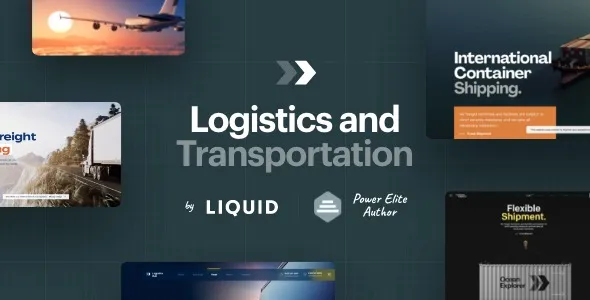
Buy Latest Version & Future updates
$15.00
$4.99
Join Our Membership to Access All Products
Download this and 12000+ Plugins & Themes as a premium member for only $7.99.
Most logistics and transportation websites fail for a simple reason. They look fine, but they do not help visitors complete the next step. People want to check service coverage, understand shipment handling, request a quote, or find contact details fast.
LogisticsHub Logistics and Transportation WordPress Theme is built around those intent paths. Instead of forcing you to bend a multipurpose layout into a freight company site, it gives you the right building blocks up front. In practice, that means fewer compromises around navigation, service pages, and lead capture.
I have set up logistics themes that looked good on a demo but fell apart once real content landed. With LogisticsHub, the structure tends to hold up better when you add long service descriptions, multiple locations, and industry-specific pages.
This theme is a practical fit when you need a site that reads like an operations business, not a portfolio. It supports the typical logistics information architecture without making every page feel identical.
For transportation companies, the “Services” section is usually the primary entry point. LogisticsHub makes it easier to present freight types, warehousing, last-mile delivery, customs, or courier work in a consistent way.
We usually set up one parent Services page and then create child pages per service. The theme layout styles tend to make that hierarchy readable, which reduces bounce for visitors who are comparing options quickly.
Logistics sites often need multiple contact routes. A general inquiry form is not enough. You may need separate paths for quotes, partnership requests, and customer support.
LogisticsHub is useful when you want those CTAs visible without turning every page into a form. Used well, the theme helps you place quote prompts where they make sense, like service pages and lane coverage pages.
The biggest friction point is not installing the theme. It is aligning the demo structure with your real business model. Logistics companies rarely match a demo’s exact service list, and people waste hours trying to keep demo pages they do not need.
My approach is to treat the demo as a layout library. Import it, then immediately delete anything that does not map to your services or regions. Keep the page templates and section patterns. Replace the content with your own copy and imagery early, before you start tweaking colors and fonts.
Another common issue is overbuilding the homepage. LogisticsHub can support a strong homepage, but it should not become a warehouse for every service paragraph you have. Let service pages do the heavy lifting. Keep the homepage focused on credibility, coverage, and a clear quote path.
If you are searching for “LogisticsHub Logistics and Transportation WordPress Theme download”, the safest workflow is to treat the install like a deployment, not a casual upload. Themes can overwrite menus, widgets, and page templates if you rush the demo import.
1) Start with a staging site. If the site is already live, clone it first. Most theme issues are reversible, but your time is not.
2) Confirm WordPress and PHP versions. Before uploading, check your hosting panel for the current PHP version and confirm WordPress is updated. Theme builders and bundled plugins can be sensitive to outdated server settings.
3) Upload the theme ZIP in WordPress. Go to Appearance > Themes > Add New > Upload Theme, then activate.
4) Install required plugins one at a time. After activation, you will usually see prompts for companion plugins. Install them in small batches and verify the site still loads between steps. I have seen “install all” cause white screens when one plugin conflicts.
5) Import demo content only if you need it. Demo import is helpful for layout scaffolding, but it also adds pages, media, and sometimes placeholder posts. Import once, then clean immediately.
6) Rebuild navigation and permalinks. Set your primary menu, then go to Settings > Permalinks and click Save to flush rewrite rules. This fixes a surprising number of 404s after imports.
7) Do a mobile pass and a speed pass. Check the quote form, header CTAs, and contact details on mobile. Then run one performance test before you add extra plugins.
Logistics sites tend to scale in two directions: more service pages and more location pages. The theme’s job is to keep that growth from turning into a navigation mess.
What I look for is whether the header and footer can support additional links without becoming cluttered. LogisticsHub generally does fine if you keep your top navigation limited and push deep pages into structured service hubs and location hubs.
One practical tip. If you plan to publish a lot of near-similar pages, like “Freight Forwarding in City X”, do not rely on just swapping city names. That creates duplicate intent. Use the theme’s layout consistency, but make the content genuinely different by adding lane details, warehouse capacity notes, cut-off times, and local compliance information.
This theme makes sense when your business needs a clear service structure and a professional operations feel. It is especially useful for freight, courier, warehousing, and multi-service transport companies that need quote requests and trust signals to be prominent.
It may not be necessary if your site is essentially a single landing page with one service and one location. In that case, a lightweight page builder template can be easier to maintain.
Also, do not expect the theme to replace logistics software. It will not provide real-time shipment tracking unless you integrate a tracking provider or custom system. I have seen teams assume a “transportation theme” includes a full tracking portal. Usually, you still need a tracking plugin, an API integration, or a simple tracking form that forwards requests to your operations team.
Typically, no. You can design a tracking page and add a form or embed a third-party tracking widget, but real tracking usually requires an external system or integration.
Yes, and it is one of the better use cases. Create location pages with consistent layout, then differentiate them with unique coverage details, contact routes, and service availability to avoid duplicate-intent pages.
Import it on staging, then immediately delete unused pages and placeholder posts. Keep the layout patterns, but replace copy and images early so you do not end up optimizing a structure you will later remove.
Theme activation and demo import can assign a new homepage and create new menus. Go to Settings > Reading to confirm the homepage, then Appearance > Menus to set the correct primary menu.
Limit extra plugins, compress images, and avoid loading multiple slider or animation tools at the same time. If the theme uses a page builder, keep sections lean and reuse global elements rather than duplicating heavy blocks across pages.
Verify your WordPress version, PHP version, and available memory limit. Install on staging first, and add required plugins gradually so you can identify conflicts quickly.
Geotoko is a trusted GPL website for WordPress themes, plugins, Shopify templates, and free giveaways. Download original, secure GPL files with lifetime updates.
All products on Geotoko are fully licensed under the GNU General Public License (GPL) and are independently reviewed for safety and quality.