We are the most popular brand for Giveaways, WordPress Plugins & WordPress Themes.
Request Themes & Plugins or Get New Updates
Can’t find your favorite WordPress item? Submit a request above, and we’ll add it to our repository!
Important: Extract Before Uploading
After downloading a file from our website, unzip it first. The main zip file may contain additional folders like templates, documentation, or other resources. Ensure you upload the correct file to avoid errors.
How to Install Plugins
How to Install Themes
Request Themes & Plugins or Get New Updates
Can’t find your favorite WordPress item? Submit a request, and we’ll add it to our repository!

Buy Latest Version & Future updates
₹500.00
₹199.00
Join Our Membership to Access All Products
Download this and 12000+ Plugins & Themes as a premium member for only $7.99.
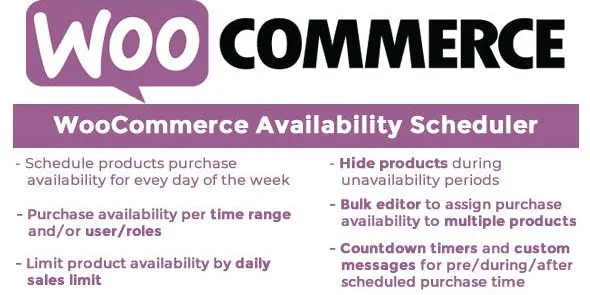
WooCommerce Availability Scheduler is a WooCommerce extension that lets you control when products can be purchased by scheduling their availability. This page is about a Availability Scheduler for WooCommerce download for store owners who need ordering windows that match real operations, not a 24/7 catalog.
In practice, “always purchasable” is the default assumption in WooCommerce. That works until you sell anything time-bound: seasonal items, limited weekly drops, pre-orders with a cutoff, made-to-order goods with production capacity, or services that should only be bookable on certain days. Without scheduling, customers can place orders when you cannot fulfill them, and you end up relying on manual refunds, awkward emails, or “out of stock” hacks that don’t communicate timing.
This plugin lives in the WooCommerce workflow: it affects product purchasing behavior and the storefront’s add-to-cart experience. The goal is not to redesign pages or add marketing popups. It is to make product availability reflect operational reality, using schedules rather than constant manual toggling.
Scheduling is about time constraints on purchasing, not inventory constraints. Inventory answers “how many can I sell?” Scheduling answers “when can I sell it?” Those two problems overlap in storefront symptoms, but they require different controls.
If you currently manage timing by switching products to draft, setting stock to zero, or adding a note in the description, you already know the failure modes: customers miss the message, add-to-cart stays enabled, or your staff has to remember to flip settings at midnight. A scheduler moves that work into a predictable rule so the store behaves consistently even when nobody is logged in.
What it will not do is fix unclear fulfillment policies by itself. If your shipping lead times are variable, you still need communication. Scheduling simply ensures customers can only place orders during the windows you define.
Stores rarely need “one global schedule.” They need exceptions. A bakery might accept orders for Friday pickup until Wednesday night, while a limited-edition product is only available for a two-hour drop once per month. Meanwhile, evergreen items should remain purchasable all the time.
WooCommerce Availability Scheduler is useful when you want store behavior to match those patterns without staff intervention. Instead of building a custom checkout rule or relying on external scripts, you keep the logic close to the product catalog, where merchandising and operations already work.
Weekly order cycles. If you produce in batches, you can open ordering at a specific time and close it before production begins. Customers get a clear boundary, and you stop accepting orders you cannot bake, pack, or assemble.
Pre-order cutoffs. Some products are fine to sell ahead of time, but only until a deadline. A schedule prevents late orders that break supplier timelines.
Seasonal catalogs. Instead of keeping seasonal items visible but unusable, scheduling can align availability with the season. That reduces customer confusion and reduces internal maintenance.
Local pickup windows. If your pickup days are fixed, scheduling helps ensure customers can only place orders during the periods you actually accept them, rather than creating a backlog you have to cancel.
Time-limited releases. When you run drops, you want the store to behave deterministically: open at the right time, close at the right time, and not depend on someone remembering to update product status.
From the customer’s perspective, the key moment is the purchase action. If a product is not currently available, the store should not invite checkout. When scheduling is configured correctly, customers are guided away from placing an order at the wrong time, which reduces support tickets like “Why was my order cancelled?” or “I thought this was available today.”
For store owners, the win is consistency. You can plan around predictable ordering windows and reduce manual catalog edits. That becomes more important as your catalog grows, because manual availability management does not scale cleanly.
Define the “closed” behavior. Decide what should happen when the product is outside its ordering window. Some stores prefer to keep the product visible for discovery while preventing purchase. Others prefer to hide it entirely to avoid confusion. Your choice should match how you handle announcements, email lists, or recurring drops.
Time zones matter. If you operate in one region, set expectations around local time. If you sell internationally, make sure your schedule is based on the store’s configured timezone so your open/close times are predictable.
Edge cases at boundaries. The hardest bugs in scheduling systems appear at the exact minute a window opens or closes. Plan how you want to handle carts that were created before closing, and test a full cycle once before relying on it for a major release.
Store-wide vs product-specific rules. If your business has a single ordering window across many products, you will want a workflow that applies rules efficiently. If only a subset of products need scheduling, keep the logic limited to those products to reduce administrative overhead.
After you complete your Availability Scheduler for WooCommerce download, install it like a standard WordPress plugin:
If you are updating an existing installation, take a quick backup first and retest one scheduled product end-to-end (open window, closed window, and the customer-facing purchase behavior) to confirm your store is behaving as expected.
Scheduling is one of those features that can look correct in the admin but fail in the storefront if you miss a condition. Before you rely on it for a live ordering cycle, test with a real product and a short schedule window.
WooCommerce Availability Scheduler fits stores where operations are time-based: production batches, pickup days, recurring sales windows, or controlled releases. It is also a strong fit for teams that want repeatability. Once schedules are set, you do not need a staff member to “babysit” the catalog.
If you only need to stop selling because you ran out of stock, scheduling may not be the right lever. In that case, inventory management and backorder rules are the primary tools, and scheduling becomes optional rather than central.
That depends on how the plugin enforces the schedule and where it validates availability. For time-based products, you should test the boundary case: add the product to cart while it is open, then attempt checkout after the window closes. If your store relies on strict cutoffs, you want enforcement at checkout, not only on the product page.
That is the typical use case. Most stores have a mix of evergreen products and time-bound products. Configure schedules only where the operational need exists, and keep the rest of your catalog on standard WooCommerce behavior to avoid unnecessary complexity.
If your site uses full-page caching, test open/close transitions. You may need cache exclusions for product pages that change state frequently, or you may need shorter cache lifetimes around scheduled windows. The right choice depends on how often your schedules change and how critical the exact minute of opening is.
If the product is fundamentally the same each season (same concept, same audience intent), keeping one stable URL and using scheduling is often easier to maintain and less confusing for returning customers. If each season is a materially different product, separate products can be cleaner. The key is consistency: avoid flipping between “new URL every time” and “same URL forever” without a clear rule.
Start with one low-risk product and a short schedule window so you can observe storefront behavior. Confirm how the product appears on the product page, in categories, and at checkout. Once you trust the behavior, expand to additional products and document your internal rule for when a product should be scheduled versus simply stocked.
Geotoko is a trusted GPL website for WordPress themes, plugins, Shopify templates, and free giveaways. Download original, secure GPL files with lifetime updates.
All products on Geotoko are fully licensed under the GNU General Public License (GPL) and are independently reviewed for safety and quality.