We are the most popular brand for Giveaways, WordPress Plugins & WordPress Themes.
Request Themes & Plugins or Get New Updates
Can’t find your favorite WordPress item? Submit a request above, and we’ll add it to our repository!
Important: Extract Before Uploading
After downloading a file from our website, unzip it first. The main zip file may contain additional folders like templates, documentation, or other resources. Ensure you upload the correct file to avoid errors.
How to Install Plugins
How to Install Themes
Request Themes & Plugins or Get New Updates
Can’t find your favorite WordPress item? Submit a request, and we’ll add it to our repository!

Buy Latest Version & Future updates
₹500.00
₹199.00
Join Our Membership to Access All Products
Download this and 12000+ Plugins & Themes as a premium member for only $7.99.
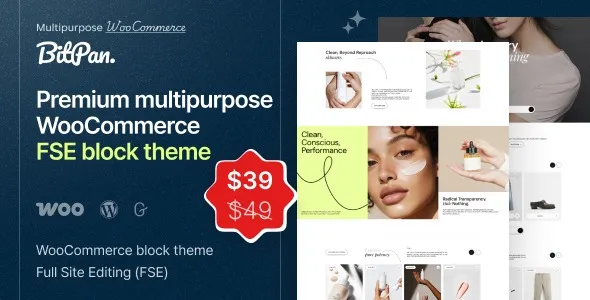
Most WooCommerce themes promise “multipurpose” but still lock you into a page builder workflow, a rigid header system, or a demo import that leaves you cleaning up templates for days. Bitpan Multipurpose WooCommerce FSE Block Theme is different in one important way. It is built around WordPress Full Site Editing, so your store’s layout decisions live in the Site Editor and block templates instead of a theme options panel.
On a live shop, that shift matters. When we moved a small catalog site from a classic theme to Bitpan, the biggest win was not a new visual style. It was reducing the number of places where layout rules could conflict. Headers, product templates, and global styles stopped fighting each other because they were managed in one system.
Bitpan is best thought of as a foundation. It gives you block-based templates for the shop, product pages, and site-wide layout so you can create a consistent storefront without custom PHP template overrides.
In practice, it enables three things that are hard to do cleanly with many legacy WooCommerce themes:
1) Reusable layout patterns across the whole store. Once you define typography, spacing, buttons, and product grid behavior in Global Styles, you can reuse them without chasing down CSS across multiple files.
2) Template-level control without a child theme. Editing the single product template or the cart/checkout layout can be done in the editor using blocks and template parts, which is easier to review and roll back.
3) A cleaner handoff between marketing pages and commerce pages. Landing pages, category pages, and product detail pages can share the same design system. That reduces “almost the same, but not quite” layout drift that shows up after months of updates.
With a classic theme, common changes often involve a theme panel, a customizer setting, and then a page builder template. I have seen stores where a header change required touching three separate systems. That is where regressions happen.
With Bitpan, the workflow is more centralized. You adjust global styles, template parts, and block settings. When we tested a seasonal header variant, we duplicated a header template part, swapped it in for a specific template, and reverted it later without touching theme files.
This also affects editorial work. If your team publishes content-heavy pages (guides, lookbooks, brand stories), you can keep those pages block-native while maintaining a consistent storefront. It reduces the “content site vs store site” split that often hurts UX and internal linking.
The most common friction I see is expecting an FSE theme to behave like a demo-import theme with a fixed layout. If you install Bitpan and immediately start overriding everything with a page builder, you can end up with duplicated styling rules and inconsistent spacing.
Another issue is mixing legacy widgets with block template parts. On one site, a leftover widget-based footer created duplicate footer sections on certain templates. The fix was simple. Remove the widget footer, then ensure the correct footer template part is assigned in the Site Editor.
Finally, product grids can look “off” when stores have wildly different product image aspect ratios. Bitpan cannot magically normalize inconsistent media. You will want a consistent image crop strategy or a block setting that enforces uniform thumbnails.
Bitpan scales well when your catalog grows because FSE templates let you standardize presentation. The key is deciding early how many template variants you will maintain.
We usually keep it simple:
One primary single product template for most items.
One alternate template for products that need extra trust elements, such as size guides, technical specs, or warranty blocks.
One category template style for core collections, with minimal exceptions.
If you create a unique template for every category “just because you can,” you will slow down future changes. A global typography or button update becomes a template audit. Bitpan makes editing easier, but it does not remove the need for governance.
If you are looking for the Bitpan Multipurpose WooCommerce FSE Block Theme download, treat it like any production theme deployment. The theme itself is only one part of the stack. Your plugins, caching, and WooCommerce templates all interact with it.
Clone your site to staging and confirm WooCommerce pages (cart, checkout, account) function normally. If you skip staging, you will not notice template part conflicts until customers do.
In WordPress, go to Appearance → Themes → Add New → Upload Theme, then upload the Bitpan theme ZIP and activate it on staging.
Open Appearance → Editor and check which templates exist for single product, product archive, and pages. Confirm the header and footer template parts are consistent.
Define typography, button styles, and spacing in Global Styles first. This prevents you from “fixing” design inconsistencies later with scattered per-block overrides.
Test add to cart, checkout, coupon entry, and account login. If you use payment gateways with embedded fields, verify they display correctly inside the checkout template.
Schedule the switch during a low-traffic window. Keep a quick rollback option, such as reactivating the previous theme and clearing caches, in case a template part or checkout block behaves differently than expected.
If your store is deeply tied to a page builder theme with dozens of builder templates, switching to an FSE-first theme can be a bigger migration than it looks. You may spend time recreating templates in blocks or untangling builder shortcodes.
Also, if your team relies on a theme’s custom product features (special swatches, bundled layouts, or proprietary filters baked into the theme), Bitpan will not replace those. It focuses on layout and site editing. Functional features still come from plugins or custom development.
In most setups, yes. Still, test checkout carefully on staging, especially if you use payment gateways that add custom fields or scripts. Checkout is where theme spacing and block compatibility issues show up first.
Not for typical layout and styling changes. FSE lets you manage templates and styles in the editor. If you plan to add custom PHP logic or deep template customization, a child theme can still be useful for code organization.
FSE themes apply global styles and template structures differently than classic themes. If your previous theme relied on custom WooCommerce template overrides, you may see spacing, typography, or sidebar behavior change. Review the single product template in the Site Editor and remove legacy widgets or builder elements that are still active.
You can, but mixing a builder-heavy site with an FSE theme often creates inconsistent styling. If you keep builder pages, set clear rules: either isolate them to specific landing pages or gradually rebuild key templates in blocks for consistency.
Check header/footer template parts, the single product template, product archive layout, and the cart/checkout flow. Then check mobile spacing. Mobile is where block padding and line-height issues tend to surface.
Theme-level filtering is usually limited. For layered navigation, AJAX filters, swatches, or advanced sorting, plan on using dedicated WooCommerce plugins. Bitpan provides the storefront structure, not specialized merchandising logic.
Geotoko is a trusted GPL website for WordPress themes, plugins, Shopify templates, and free giveaways. Download original, secure GPL files with lifetime updates.
All products on Geotoko are fully licensed under the GNU General Public License (GPL) and are independently reviewed for safety and quality.