We are the most popular brand for Giveaways, WordPress Plugins & WordPress Themes.
Request Themes & Plugins or Get New Updates
Can’t find your favorite WordPress item? Submit a request above, and we’ll add it to our repository!
Important: Extract Before Uploading
After downloading a file from our website, unzip it first. The main zip file may contain additional folders like templates, documentation, or other resources. Ensure you upload the correct file to avoid errors.
How to Install Plugins
How to Install Themes
Request Themes & Plugins or Get New Updates
Can’t find your favorite WordPress item? Submit a request, and we’ll add it to our repository!

Buy Latest Version & Future updates
₹800.00
₹399.00
Join Our Membership to Access All Products
Download this and 12000+ Plugins & Themes as a premium member for only $7.99.
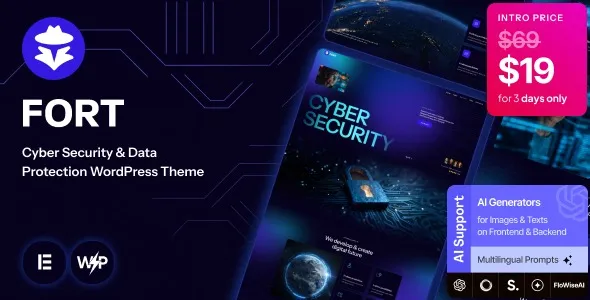
Most security companies do not struggle with “having a website”. They struggle with presenting trust signals without turning the site into a wall of jargon. Fort Cyber Security and Data Protection WordPress Theme is built for that middle ground. It gives you page structures that are already biased toward credibility. Think service breakdowns, incident response style timelines, compliance friendly layouts, and case study sections that do not look like generic agency templates.
I have used themes like this on sites where the copy was solid, but the layout made everything feel soft. Fort pushes you toward sharper hierarchy. That matters when visitors are comparing vendors quickly and scanning for proof.
It is also a practical choice when you need a security focused look but you still want WordPress editing to stay simple for non technical teams. You can build a clean marketing site, a lead gen funnel, and a documentation style resource area without bolting on five different design plugins.
The usual friction is not design. It is consistency. You end up with one landing page that looks great, then a blog that looks like a different site, then a contact page that feels like an afterthought.
Fort reduces that mismatch by giving you repeatable patterns for the pages security brands actually need. Service pages can keep a consistent “problem, approach, deliverables” rhythm. Case studies can keep a consistent “before, after, outcomes” rhythm. When we rebuilt a small MSSP site, this consistency reduced review cycles because stakeholders stopped arguing about layout and focused on the message.
Another common issue is overestimating what a security theme does. Fort will not secure WordPress. It will not replace hardening, WAF rules, backups, or monitoring. What it does is help you communicate security and data protection services in a way that looks intentional and structured.
With niche themes, the temptation is to import everything and leave it. That creates long term editing pain. My approach with Fort is to treat the demo as a component library, not a finished site.
Start by mapping your actual offerings to the theme’s sections. If your business sells “penetration testing” and “managed detection and response”, do not force them into generic “consulting” blocks. Rename the content types early so menus, breadcrumbs, and internal links stay coherent.
We also keep a tight rule: one page equals one intent. A “SOC as a Service” page should not also try to rank for “data recovery” just because the theme has a section for it. Fort makes it easy to add sections, but Google indexing tends to reward focus. If you are building a library of service pages, this matters for crawl prioritization and avoiding duplicate intent across similar pages.
Install Fort on staging before touching production. Themes can introduce new builders, shortcodes, or custom post types. Testing on staging prevents layout breakage and lets you confirm plugin compatibility.
After you obtain the Fort Cyber Security and Data Protection WordPress Theme download, unzip it locally and identify the installable theme ZIP. Many theme bundles include documentation, child theme files, and demo data separately.
In WordPress, go to Appearance → Themes → Add New → Upload Theme. Upload the theme ZIP and activate it. If a child theme is included, install it next and activate the child theme so future edits stay update safe.
Fort typically relies on a page builder and a few helper plugins. Install only what you will use. Extra plugins increase update surface area and can slow the admin.
If the theme provides demo import, import once, then immediately delete what you do not need. Leaving unused pages and post types creates thin content and can confuse indexing if those URLs get linked internally.
Do global styling before building pages. Otherwise, you end up overriding styles block by block. That is the fastest way to create inconsistent spacing and unpredictable mobile behavior.
Check mobile menus, Core Web Vitals basics (image sizes, lazy loading), and form delivery. Also confirm that the blog template matches the brand style. On security sites, the blog often becomes the trust engine, so it should not look secondary.
Security and data protection sites tend to overuse animations, counters, and heavy background video. Fort’s layouts can look premium without needing those. The theme works best when you keep motion minimal and let structure do the work.
In practice, we got the best results by using iconography sparingly and prioritizing readable sections. Clear service cards, short proof blocks, and a strong “process” section do more for conversion than a complex hero slider.
Pay attention to image handling. Many demos ship with oversized PNGs. Replace them with properly sized WebP images and keep consistent aspect ratios. This is one of the simplest ways to improve load time without redesigning anything.
The first mistake is turning every page into a long scrolling homepage. Fort makes it easy to stack sections, but service pages should not be identical clones. If every service page repeats the same blocks in the same order, the site starts to look like duplicate intent to both users and search engines.
The second mistake is mixing too many font weights and button styles. Security brands need visual discipline. Pick one button style, one accent color, and one headline style, then enforce it across templates.
The third is forgetting the “boring” pages. Privacy policy, incident reporting contact, and support routes matter more in this niche. Fort can style these pages nicely, but you still need to add them and link them in sensible places.
Fort is a good fit if you are building a marketing site for a cyber security consultancy, MSSP, data protection firm, or compliance focused service provider. It is also useful for SaaS tools in the security space that need a credible brochure site plus content marketing.
If your primary goal is a complex product app interface inside WordPress, Fort is not the right tool. You will spend time fighting the theme’s marketing layouts. In that case, a lighter theme with custom templates may be better.
It is also not a substitute for real security controls. If your stakeholders think a “security theme” improves hardening, set expectations early. Use Fort for messaging and structure, then handle security with proper hosting, updates, and monitoring.
No. It is a design and layout theme. It helps you present security services and trust signals, but it does not replace patching, secure hosting, backups, or a firewall.
For most teams, import the demo once, then reuse sections as components. Building from zero is slower. Keeping the full demo untouched is messy and often leaves thin pages behind.
Yes, but check the blog template styling early. I usually adjust typography, spacing, and sidebar behavior right away so long articles stay readable and consistent with service pages.
It can, as long as you simplify. Reduce stacked sections, keep forms short, and test the header and sticky elements. Mobile conversions drop quickly when pages become too tall or visually busy.
Set global styles, create your core service pages, and build internal linking intentionally. Then remove unused demo pages so search engines do not waste crawl budget on content you never meant to publish.
This is usually a missing plugin, a different page builder version, or global style settings not applied. Confirm required plugins are active and check theme options for typography and header templates.
Geotoko is a trusted GPL website for WordPress themes, plugins, Shopify templates, and free giveaways. Download original, secure GPL files with lifetime updates.
All products on Geotoko are fully licensed under the GNU General Public License (GPL) and are independently reviewed for safety and quality.