We are the most popular brand for Giveaways, WordPress Plugins & WordPress Themes.
Request Themes & Plugins or Get New Updates
Can’t find your favorite WordPress item? Submit a request above, and we’ll add it to our repository!
Important: Extract Before Uploading
After downloading a file from our website, unzip it first. The main zip file may contain additional folders like templates, documentation, or other resources. Ensure you upload the correct file to avoid errors.
How to Install Plugins
How to Install Themes
Request Themes & Plugins or Get New Updates
Can’t find your favorite WordPress item? Submit a request, and we’ll add it to our repository!

Buy Latest Version & Future updates
₹800.00
₹399.00
Join Our Membership to Access All Products
Download this and 12000+ Plugins & Themes as a premium member for only $7.99.
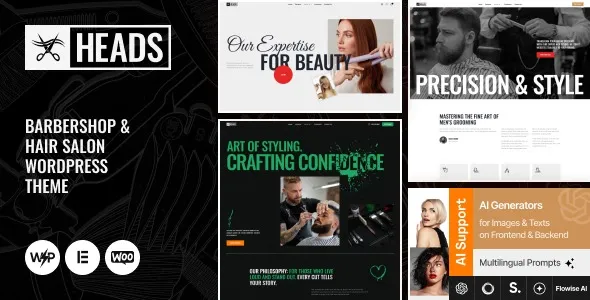
Most barbershop and salon websites fail for boring reasons. The photos look fine, but the booking path is unclear, the location details are buried, and the site feels like a brochure instead of a schedule-driven business tool.
Heads Barbershop & Hair Salon WordPress Theme is built around that service flow. It gives you the right page types and layout patterns to present services, barbers or stylists, pricing, opening hours, and a direct “book now” style call-to-action without you having to invent the structure from scratch.
I have installed Heads on a live WordPress site where the owner wanted “simple,” but the real requirement was consistency. Every service needed the same layout, every team profile needed the same fields, and updates had to be doable without calling a developer. Heads is geared toward that kind of repeatable content.
You can get a credible salon site online fast with Heads because the theme expects the common building blocks: service menus, staff profiles, gallery sections, testimonials, and contact or map blocks.
Where you still need judgment is the conversion flow. Heads can put the booking button everywhere, but you still have to decide which pages deserve it, what the button links to, and whether you want an on-site booking plugin or an external booking provider.
If you are searching for “Heads Barbershop & Hair Salon WordPress Theme download” because you want a ready-to-edit foundation, this theme makes sense. If you are expecting it to replace a booking system by itself, plan on adding a booking plugin or integrating your scheduler.
With a general multipurpose theme, you often spend your first day just choosing typography, spacing, and section patterns. Then you build custom pages and try to keep them consistent as the site grows.
Heads reduces that early decision fatigue. The default design language is already aligned with grooming and salon businesses, so you spend more time on content and less time on “what should a service card look like?”
It also helps avoid a common small-business mistake: treating the homepage as the only important page. With Heads, service pages and team pages can be first-class pages, not afterthoughts.
The cleanest way to use Heads is to treat it like a content system. Start with a small set of repeatable page types and fill them in consistently.
On a shop site I worked on, we used this workflow:
First, we created a “Services” structure that matched how clients ask for cuts. Not how the owner describes them. That meant fewer categories, clearer names, and pricing that did not require a phone call to understand.
Second, we built team profiles with real details. Years of experience, specialties, and a few photos that looked like the same brand. Heads makes it easier to present staff consistently, which matters when customers choose a barber or stylist by name.
Third, we tightened the booking path. Every service page linked to booking. Every team profile linked to booking. The contact page did not try to do everything. It answered location, hours, parking, and how to book.
Niche themes can be opinionated. That is good for speed, but it can create friction when you push the design outside its intended style.
One issue I hit was content density. Salon owners often want to add long text blocks about products, training, and brand story. Some Heads layouts look best with shorter copy and stronger visuals. If you plan a text-heavy site, you may need to adjust spacing or choose templates that support longer sections.
Another common snag is image consistency. Heads looks polished when images share aspect ratios and lighting. If you mix random phone photos with studio shots, the theme will not “fix” that. It will simply display the mismatch more clearly.
Finally, be careful with too many sliders, galleries, and animations on mobile. The design can handle it, but performance and usability can suffer if you load every visual component on every page.
For a barbershop or salon, you usually want Google to crawl and understand a small set of pages very well: services, pricing, location, team, and booking instructions. Heads supports that by making those pages natural to create.
Where I have seen site owners accidentally create crawl waste is with duplicated service pages. For example, “Beard Trim,” “Beard Trim for Men,” and “Beard Trimming Service” all pointing to the same intent. That can dilute relevance and make internal linking messy.
Pick one canonical service name per intent, keep the URL stable, and use the page content to cover variations. Heads gives you the layout structure, but you still need content discipline to avoid duplicate-intent pages.
If you are scaling to multiple locations, plan your information architecture early. Separate location pages should have unique details: address, hours, staff, parking notes, local photos, and location-specific FAQs. Do not clone the same page five times with only the suburb changed.
Update WordPress core, your active plugins, and your PHP version to a supported level on your host. If this is an existing site, take a full backup and confirm you can restore it.
If you have a staging site, use it. I have seen styling conflicts with page builders and caching plugins that are easy to fix when you are not under pressure on production.
In the WordPress dashboard, go to Appearance > Themes > Add New > Upload Theme. Upload the Heads theme zip, install, then activate.
After activation, Heads may prompt you to install companion plugins. Install only what you will actually use. Extra plugins can add scripts, database tables, and admin clutter.
Demo import is useful for layout reference, but it can also add pages, posts, and media you do not need. If you import, immediately delete unused demo pages and set your real homepage and menu structure.
Set your permalinks, site title, logo, and primary navigation. Then create your core pages: Services, Team, Pricing, Contact, and a booking page or booking link strategy.
Enable caching, compress images, and check mobile layout. Then confirm your site is indexable in Settings > Reading and that your SEO plugin is generating a sitemap.
Heads is a theme, so it focuses on presentation and structure. For real appointments, you usually connect a booking plugin or link to an external booking service. Heads helps you place booking calls-to-action in the right spots.
Yes. The styling leans grooming-focused, but the page structure works for hair salons, beauty studios, and hybrid shops. The key is your imagery and service naming.
Avoid creating multiple pages that target the same intent with slightly different wording. Keep one strong service page per service, and use sections inside the page to cover variations, add-ons, and FAQs.
It can. Demo pages often have thin or generic text and can create low-value URLs that get crawled and indexed. If you import, prune aggressively, and rewrite anything you keep.
It can be, but you need a clear location structure. Create unique location pages with real differences, not copies. Add distinct staff lists, local photos, and location-specific details so Google sees each page as genuinely useful.
Missing required plugins or a page builder mismatch. If the layout looks unstyled, check the theme’s recommended plugins, confirm the correct templates are applied, and clear caching. On staging, I also verify that minification is not combining scripts in a way that breaks interactive sections.
Rotate fresh photos, add new team members properly, and update service descriptions when pricing or timing changes. Small, consistent updates to core pages tend to outperform frequent layout changes.
If you are looking for the Heads Barbershop & Hair Salon WordPress Theme download to launch quickly, treat it as the starting framework. Install, set your core pages, then spend your time on service clarity, staff credibility, and a booking path that is obvious on mobile.
Geotoko is a trusted GPL website for WordPress themes, plugins, Shopify templates, and free giveaways. Download original, secure GPL files with lifetime updates.
All products on Geotoko are fully licensed under the GNU General Public License (GPL) and are independently reviewed for safety and quality.