We are the most popular brand for Giveaways, WordPress Plugins & WordPress Themes.
Request Themes & Plugins or Get New Updates
Can’t find your favorite WordPress item? Submit a request above, and we’ll add it to our repository!
Important: Extract Before Uploading
After downloading a file from our website, unzip it first. The main zip file may contain additional folders like templates, documentation, or other resources. Ensure you upload the correct file to avoid errors.
How to Install Plugins
How to Install Themes
Request Themes & Plugins or Get New Updates
Can’t find your favorite WordPress item? Submit a request, and we’ll add it to our repository!

Buy Latest Version & Future updates
₹500.00
₹199.00
Join Our Membership to Access All Products
Download this and 12000+ Plugins & Themes as a premium member for only $7.99.
Most WordPress sites do not fail at “playing a video”. They fail at everything around it. The player breaks inside a page builder, the poster image stretches, autoplay behaves differently on iOS, or the play button sits on top of a cookie banner and becomes unclickable.
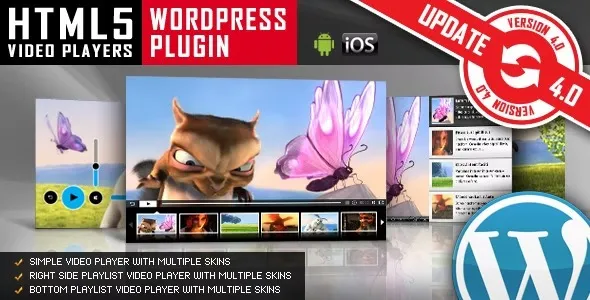
HTML5 Video Player WordPress Plugin is the kind of tool you reach for when you want a consistent, controllable player across pages, posts, and product templates without rebuilding the theme. I have used it on sites where the default embed looked fine on desktop but fell apart on mobile and where editors needed a repeatable way to add videos without touching code.
The built-in WordPress video block is serviceable, but it is not opinionated about your brand, your layout system, or your delivery method. As soon as you need consistent sizing rules, a reliable poster workflow, or a predictable control set, you end up with scattered CSS fixes and “special” pages.
With a dedicated HTML5 player plugin, you get a single configuration surface. That matters when you are troubleshooting. When one product page video fails, you can compare it to another instance and isolate whether the issue is the source file, the shortcode settings, or the surrounding layout.
On content-heavy sites, we usually standardize two or three player presets. For example: a wide player for tutorials, a compact player for product pages, and a muted looping hero video for landing pages. The goal is not “more options”. The goal is fewer decisions for editors.
When the plugin supports shortcodes, I treat them like stable building blocks. A shortcode can be inserted into classic editor content, a custom HTML block, or a template part. That makes it easier to keep behavior consistent when your site uses a mix of Gutenberg, a page builder, and legacy templates.
One practical note: decide early whether you want videos hosted locally (Media Library) or served from a CDN. Mixing approaches without a naming convention is how teams end up with broken links six months later.
1) “It plays on desktop but not on iPhone.” This is usually not the plugin. It is the encoding, the audio track, or an autoplay assumption. iOS is strict about autoplay and often requires muted playback for any auto-start behavior. If you are seeing a blank area or immediate pause, test with a known-good MP4 (H.264 + AAC) and confirm the server sends the correct MIME type.
2) Layout shift when the video loads. If the player container does not reserve space, your page jumps when the poster or metadata loads. The fix is to set a predictable aspect ratio or explicit dimensions in the player settings and keep them consistent across templates.
3) “The play button is there, but clicks do nothing.” I have seen this when an overlay element sits above the player. Cookie banners, sticky headers, and even invisible page builder columns can intercept clicks. Use the browser inspector to check stacking context and z-index rather than assuming the player is broken.
4) Multiple videos on one page behave oddly. If you place several instances in tabs or accordions, only the visible one may initialize correctly. The stable approach is to avoid loading many players inside hidden containers, or to ensure your tab/accordion script triggers a resize or reflow when the panel opens.
If you only embed an occasional clip in a blog post, the core Video block is fine. It is one less dependency and it will keep improving with WordPress updates.
The HTML5 Video Player WordPress Plugin makes more sense when you care about repeatability. Teams with multiple editors benefit from consistent controls, consistent sizing, and a shared way to add poster images and sources without reinventing the process per page.
It also tends to win when you are building sales pages or product documentation where the video is part of the conversion flow. In those contexts, small inconsistencies in controls, spacing, or responsiveness are not cosmetic. They affect trust and usability.
Any video player is only as “light” as the media it loads. The plugin can help you present videos cleanly, but it cannot rescue a 300 MB file uploaded straight from a camera.
What we do in practice is keep the player consistent and optimize the pipeline. Compress MP4s, use a reasonable resolution, and use poster images that are not oversized. If you are using multiple videos per page, consider lazy loading behavior and avoid preloading too aggressively. Otherwise, you will see bandwidth spikes and slower Largest Contentful Paint on mobile.
Use the official download package you received. If you are searching for “HTML5 Video Player WordPress Plugin download”, double-check you are not grabbing a modified archive. A compromised plugin is one of the fastest ways to lose indexing trust and user safety.
Go to Plugins → Add New → Upload Plugin, select the ZIP, then install and activate.
Open a page that will use the player and check the browser console for JavaScript errors. If you already run a heavy theme or multiple page builder add-ons, resolve conflicts before rolling it out site-wide.
Add a single video on a staging page. Test on mobile and desktop. Confirm poster behavior, controls, and sizing. Only then replicate the pattern across templates.
Once you find settings that behave well, document them for your editors. We usually keep a short internal note like “Use preset A for tutorials, preset B for product pages” to prevent drift.
In most setups, yes. The key is that your server must deliver the file with the correct MIME type and allow byte-range requests. Without byte-range support, seeking can feel broken even though playback starts.
Mobile browsers restrict autoplay, especially with sound. If you need autoplay, plan for muted autoplay and provide a clear user-initiated play option. Also test inside in-app browsers (Instagram, Facebook) because they can behave differently than Safari/Chrome.
You can, but be cautious with performance and hidden containers. If players sit inside tabs, accordions, or sliders, test that initialization happens when the container becomes visible. Otherwise you may see wrong sizing or unresponsive controls.
Encoding and delivery. A “valid” MP4 can still fail if it uses an unsupported codec profile, if the audio track is missing/odd, or if the server blocks range requests. Start with a known-good MP4 export and test again before changing plugin settings.
Indirectly. A stable player improves user experience and reduces pogo-sticking on pages where video is core content. For indexing, the bigger wins come from fast pages, clear on-page text around the video, and avoiding thin pages that only contain a player.
No. If you need adaptive streaming, advanced analytics, or automatic transcoding, you may still want a dedicated video host. This plugin is best when you want a controlled HTML5 playback experience inside WordPress and you already manage the media pipeline.
Geotoko is a trusted GPL website for WordPress themes, plugins, Shopify templates, and free giveaways. Download original, secure GPL files with lifetime updates.
All products on Geotoko are fully licensed under the GNU General Public License (GPL) and are independently reviewed for safety and quality.