We are the most popular brand for Giveaways, WordPress Plugins & WordPress Themes.
Request Themes & Plugins or Get New Updates
Can’t find your favorite WordPress item? Submit a request above, and we’ll add it to our repository!
Important: Extract Before Uploading
After downloading a file from our website, unzip it first. The main zip file may contain additional folders like templates, documentation, or other resources. Ensure you upload the correct file to avoid errors.
How to Install Plugins
How to Install Themes
Request Themes & Plugins or Get New Updates
Can’t find your favorite WordPress item? Submit a request, and we’ll add it to our repository!

Buy Latest Version & Future updates
₹500.00
₹250.00
Join Our Membership to Access All Products
Download this and 12000+ Plugins & Themes as a premium member for only $7.99.
Most “medical” themes look fine in a demo and then fall apart when you try to run a real clinic workflow. You need predictable navigation for patients, clear service pages for search engines, and appointment paths that do not hide behind sliders or heavy effects.
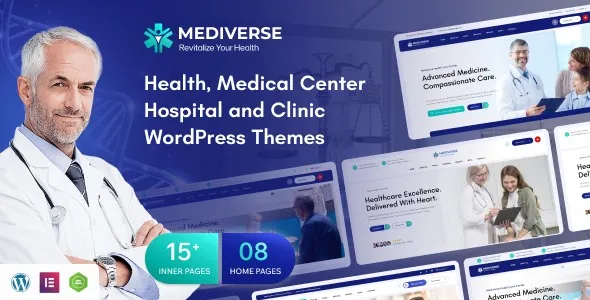
Mediverse – Health Medical Clinic WordPress Theme is built around those practical pages: departments, doctors, services, opening hours, contact, and appointment prompts. When we deployed it for a small multi-specialty clinic, the biggest win was not the visuals. It was that the content types and templates already anticipated how clinics publish information, which reduced the amount of custom page building needed to get indexable, consistent pages live.
Clinic sites often ship with thin pages that are hard to differentiate. Mediverse pushes you toward a structure that Google can understand: one service per page, one doctor profile per page, and supporting pages that answer intent like “cardiology consultation” or “pediatric clinic near me” (location content still has to be written, but the layout supports it).
In practice, this theme makes it easier to avoid duplicate-intent pages because you can standardize how you publish each service and each practitioner. That matters when you scale beyond five services. Without a consistent template, teams tend to create near-identical pages with swapped keywords, which is a common indexing failure.
I have broken enough clinic themes to be cautious. With Mediverse, the main friction usually shows up in three places: demo import assumptions, page builder lock-in, and plugin overlap.
Demo content can overwrite menus, homepage settings, and widget areas. If you import late, you can accidentally undo careful navigation work. We now import on a staging site first, then selectively copy layouts or rebuild only the pages we need.
Also, if you already run an appointment plugin, check whether Mediverse’s built-in appointment sections are just design blocks or actual booking logic. Many teams overestimate what a theme “booking” button does. Often it is a styled link to a form, not a scheduling engine.
When Mediverse is used well, the site stops being a brochure and becomes a library of patient-facing answers. The workflow that has held up best for us is:
We build service pages first, then doctor profiles, then department hubs that link to both. Service pages target the “what is it + who is it for + when to book” intent. Doctor pages target trust signals and internal linking, not keyword stuffing.
For clinics with multiple locations, we keep one canonical service page and create separate location pages that reference it. This avoids spinning up multiple “same service, different suburb” pages that compete with each other. Mediverse’s layout options make these location pages feel consistent without duplicating the entire service narrative.
A common alternative is a generic multipurpose theme plus a page builder kit. That can work, but it often produces inconsistent heading structure and reusable sections that look different but say the same thing. Google tends to treat those as duplicate intent, especially when service pages share identical hero blocks and FAQs with minor edits.
Mediverse’s medical-first templates encourage repeatable information architecture. That does not automatically make pages rank, but it makes it easier to keep each page’s purpose distinct. When we audited a site after switching, the crawl path improved because internal links were cleaner and the “doctor to service” relationships were obvious.
Medical themes sometimes ship with heavy sliders, icon packs, and animation scripts. Mediverse can be kept lean, but only if you resist importing every demo element. On one install, the homepage looked great after import but loaded too many assets for a clinic that only needed three core sections.
What helped: remove unused slider modules, keep one font family, and avoid stacking multiple section backgrounds. If you use a caching plugin, test appointment and contact forms carefully. We once cached a confirmation page and confused patients because the success message appeared without a submission.
Clone your site or use a staging environment. Theme changes affect templates, menus, and widgets, so you want rollback options.
Keep the Mediverse – Health Medical Clinic WordPress Theme download file intact. If the package includes documentation or bundled plugins, store them alongside the theme so you can match versions later.
In WordPress, go to Appearance > Themes > Add New > Upload Theme. Upload the theme zip and activate it.
After activation, you may be prompted to install companion plugins. Install only what you need. If you already use a form or SEO plugin, avoid doubling up unless you have a clear reason.
If you import, do it on staging. Note what it changes: homepage assignment, menus, widgets, and customizer settings. We typically import once, then rebuild the real navigation and delete unused pages.
Create unique service pages, doctor profiles, and department hubs. Set clean permalinks early so you do not have to redirect later.
Check mobile navigation, form submissions, schema output from your SEO plugin, and page speed. Then push to production.
If you are looking for “Mediverse – Health Medical Clinic WordPress Theme download” guidance, the safest approach is still the same: install on staging, confirm the package matches the expected structure, and validate that required plugins are available before you change anything on a live clinic site.
In most setups I’ve seen, the theme provides styled appointment sections and buttons, but the actual booking logic depends on the form or scheduling plugin you connect. Plan your booking flow first, then style it to match.
Yes, that is one of the practical strengths. Use a consistent layout for credentials, specialties, clinic hours, and “book” calls to action, then vary the narrative and internal links so profiles do not become duplicates.
It can. Demo import often reassigns the front page and creates new menus. That is why we import on staging and document what changed before applying anything to production.
It can still be a fit if you want a structured service library and a professional doctor profile. If you only need one page and a contact form, a lighter setup may be easier to maintain.
Treat each service page as a distinct intent. Write different “who it helps,” “what happens in a visit,” and “when to seek care” sections. Keep shared content (like insurance notes) short and place it on one canonical policy page.
Custom page builder layouts and overridden templates are the common failure points. Before updating, export templates if your builder supports it and test updates on staging. We also keep a simple changelog of what was customized.
Geotoko is a trusted GPL website for WordPress themes, plugins, Shopify templates, and free giveaways. Download original, secure GPL files with lifetime updates.
All products on Geotoko are fully licensed under the GNU General Public License (GPL) and are independently reviewed for safety and quality.