We are the most popular brand for Giveaways, WordPress Plugins & WordPress Themes.
Request Themes & Plugins or Get New Updates
Can’t find your favorite WordPress item? Submit a request above, and we’ll add it to our repository!
Important: Extract Before Uploading
After downloading a file from our website, unzip it first. The main zip file may contain additional folders like templates, documentation, or other resources. Ensure you upload the correct file to avoid errors.
How to Install Plugins
How to Install Themes
Request Themes & Plugins or Get New Updates
Can’t find your favorite WordPress item? Submit a request, and we’ll add it to our repository!

Buy Latest Version & Future updates
₹500.00
₹199.00
Join Our Membership to Access All Products
Download this and 12000+ Plugins & Themes as a premium member for only $7.99.
Most “minimal” WordPress themes look clean in demos and then fall apart the moment you add real content. Your image sizes vary, your excerpts don’t match, your typography feels off, and the blog ends up looking like an afterthought.
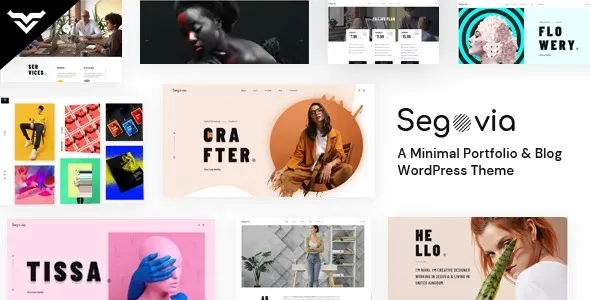
Segovia – A Minimal Portfolio And Blog WordPress Theme is built for the opposite workflow. You start with your work and your writing, then let the theme stay out of the way. When I tested Segovia on a site that already had mixed media posts and a large portfolio archive, the wins were not flashy. They were practical: consistent spacing, predictable templates, and fewer decisions that you have to “fix later.”
Segovia is best thought of as a presentation layer for two things: a portfolio and a blog. It gives you a coherent visual system so your work pages and editorial pages feel like one site, not two stitched sections.
In practice, it enables:
Portfolio-first navigation. You can orient the site around projects, then support them with posts that explain process, context, and results.
Editorial readability. Minimal themes often forget long-form. Segovia is comfortable with real paragraphs, headings, and image blocks without turning posts into a wall of text.
Consistent grids and whitespace. This is where “minimal” either works or doesn’t. Segovia tends to keep layouts stable even when content is uneven.
What it does not do: it won’t replace a page builder’s component library, and it won’t magically create a conversion funnel. If you need complex landing pages, quizzes, or heavy marketing sections, you will still be adding plugins or custom blocks.
I usually see two failure points with portfolio themes: media handling and taxonomy sprawl. Segovia holds up, but you still need to set it up with intent.
Media handling: If you upload a mix of portrait and landscape images, many themes produce awkward crops or inconsistent heights. With Segovia, the layout is more forgiving, but you should still standardize featured image ratios for your portfolio items. When I didn’t, the grid looked “almost right” but not polished.
Taxonomy sprawl: Portfolio categories and tags can get messy quickly. Segovia’s minimal navigation means clutter is more visible. Keep categories broad, use tags sparingly, and decide early whether the portfolio will be browsed by type, industry, or year. Don’t try to do all three unless you’re ready to curate.
If you are building a personal site or a small studio site, the cleanest pattern is to treat projects as the “proof” and blog posts as the “explanation.” Segovia supports that without forcing a complicated information architecture.
Here is a workflow that has worked well for me:
1) Create 6–12 cornerstone projects. Each project gets a tight summary, a small gallery, and a clear role statement. Minimal design makes vague copy painfully obvious.
2) Add 3–5 supporting posts per service line. These are not news updates. They are process posts, teardown posts, and case study notes that answer the questions clients actually ask.
3) Build a simple “Start here” page. Even minimalist sites need orientation. Link to your best projects, your best writing, and a contact path. Segovia’s style makes a simple page feel intentional.
4) Use internal links aggressively. Minimal themes can look sparse. Internal linking adds depth without adding visual clutter, and it helps Google understand topical clusters.
Default WordPress themes are improving, especially for block-first editing. The issue is that they are general-purpose. You can make them do portfolio work, but you spend time designing patterns, spacing, and templates.
Segovia is a better fit when you want the “portfolio + blog” shape to be solved up front. You are essentially paying with fewer options to gain consistency. On a real build, that usually means you ship faster and you have fewer “why does this page feel different?” revisions.
If you already have a tight design system and you want full control, a default block theme plus custom patterns might be the better long-term foundation. Segovia is strongest when you want a cohesive look without turning the project into a design sprint.
Minimal themes can be fast, but speed is rarely “free.” The most common performance regressions I see come from fonts, oversized images, and animation scripts added later.
With Segovia, I recommend:
Keep font choices conservative. If you add multiple font families and weights, you can erase the benefit of a lightweight theme. Use one family and two weights if possible.
Resize portfolio images before upload. WordPress generates multiple sizes, but it won’t save you from uploading 6000px images for a 1200px layout. Your LCP will suffer.
Be careful with gallery plugins. Many portfolio owners add sliders and lightboxes. Test them. I have seen “simple” lightboxes add more JS than the theme itself.
Segovia’s design reads best when it loads quickly. If the first paint is delayed, minimal layouts feel empty rather than elegant.
If you are searching for “Segovia – A Minimal Portfolio And Blog WordPress Theme download,” treat the process like any other production change. Themes touch templates, menus, widgets, and sometimes content formatting. A clean install saves hours.
Clone your site to a staging environment. If you cannot, at least take a full backup of files and database. Theme switches are reversible, but layout regressions can be time-consuming to track.
In WordPress, go to Appearance → Themes → Add New → Upload Theme. Upload the Segovia theme ZIP and install it.
After activation, immediately review: homepage, single post, portfolio item, category/tag archives, and search results. Look for spacing issues, missing featured images, and headings that changed size.
Confirm your menu locations, then check Settings → Reading for homepage configuration. Many “it looks broken” reports come from the wrong homepage assignment.
If you changed image sizes or your old theme used unusual crops, regenerate thumbnails so portfolio grids look consistent.
Confirm that title tags, meta descriptions (if you use an SEO plugin), and schema settings stayed intact. Themes rarely change these directly, but layout changes can affect internal linking and crawl paths.
Yes, but it shines when the blog and portfolio support each other. If you publish long-form content frequently, make sure the typography and spacing suit your post length and image density.
Your content stays in the database, but how it renders can change. Expect differences in image sizes, block spacing, and archive layouts. That is why I always test on staging first.
Not necessarily. If your goal is a clean portfolio and readable blog, you can often stay within the block editor. Add a builder only if you truly need custom landing page components.
Usually it is mixed aspect ratios or old thumbnails. Standardize featured image ratios for new items and regenerate thumbnails for older uploads.
It can, but you need disciplined categorization and good archive navigation. Also watch image weight. Large portfolios fail on performance more often than on layout.
It can be, as long as you define editorial rules. Minimal themes make inconsistency obvious. Agree on excerpt length, featured image style, and heading usage so posts look cohesive.
People try to recreate the demo pixel-for-pixel and end up adding unnecessary plugins. Start with structure, then refine. Segovia’s value is clarity, not complexity.
Geotoko is a trusted GPL website for WordPress themes, plugins, Shopify templates, and free giveaways. Download original, secure GPL files with lifetime updates.
All products on Geotoko are fully licensed under the GNU General Public License (GPL) and are independently reviewed for safety and quality.