We are the most popular brand for Giveaways, WordPress Plugins & WordPress Themes.
Request Themes & Plugins or Get New Updates
Can’t find your favorite WordPress item? Submit a request above, and we’ll add it to our repository!
Important: Extract Before Uploading
After downloading a file from our website, unzip it first. The main zip file may contain additional folders like templates, documentation, or other resources. Ensure you upload the correct file to avoid errors.
How to Install Plugins
How to Install Themes
Request Themes & Plugins or Get New Updates
Can’t find your favorite WordPress item? Submit a request, and we’ll add it to our repository!

Buy Latest Version & Future updates
₹500.00
₹199.00
Join Our Membership to Access All Products
Download this and 12000+ Plugins & Themes as a premium member for only $7.99.
Most stores start with “good enough” order emails and a basic print button. Then you add a second warehouse, or you begin shipping internationally, or accounting asks for sequential invoice numbers with the right tax labels. That is when the gaps show up.
WooCommerce PDF Invoices & Packaging Slips Premium is one of the few plugins I have used that can carry a store from “we need a PDF” to “we need consistent, auditable documents across thousands of orders.” It is not magic, though. The quality of the result depends on how you configure numbering, templates, and when documents get generated.
At its core, WooCommerce PDF Invoices & Packaging Slips Premium generates PDF documents tied to orders. That sounds simple until you need the PDFs to be predictable, branded, and retrievable later.
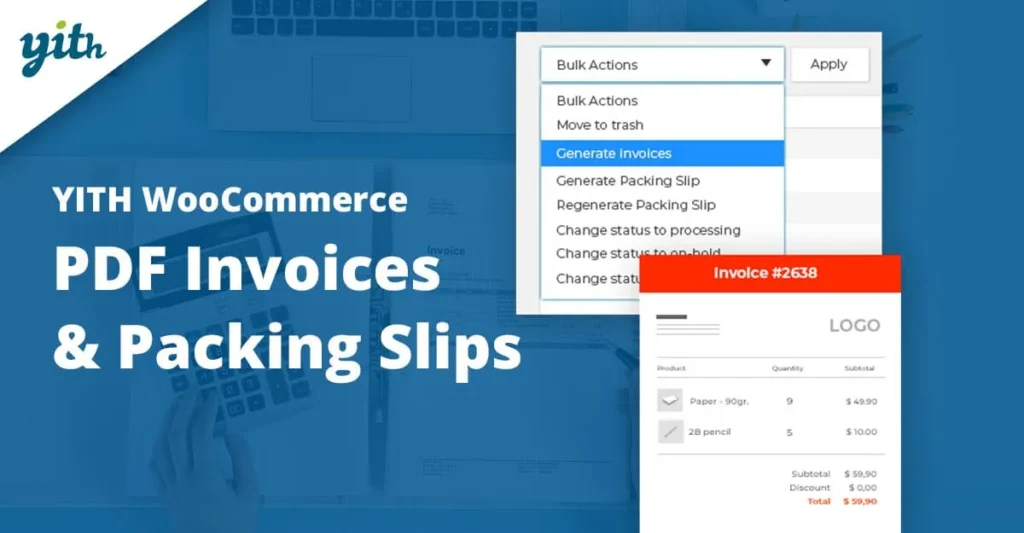
In practice, the Premium version is about control. You get more options around invoice numbering, document types, and automation points. You can generate invoices on specific order statuses, expose PDFs to customers in My Account, and keep admin-side access reliable for staff who are packing orders all day.
One thing I wish more store owners understood early is that this plugin does not replace your accounting system. It helps you output compliant-looking documents and keep them attached to orders. If you need full bookkeeping, tax filing, or payment reconciliation, you still need proper accounting workflows.
When it is set up well, the biggest win is removing manual document handling. Staff stop exporting orders, renaming files, and hunting for the “right” invoice to email. The PDF is already there, consistently formatted, and tied to the order record.
The friction usually comes from template expectations. People assume they can recreate a complex, pixel-perfect invoice from an ERP system in an afternoon. You can get very close, but you may need to adjust your expectations, or budget time for template customization and testing.
We once broke invoice numbering by importing historical orders and then changing the numbering settings midstream. The plugin did what it was told, but the business expectation was different. The fix was to decide on a numbering policy first, then lock it in, then test on staging with copied orders.
On small stores, almost any configuration “works.” On busy stores, you learn quickly what matters: deterministic numbering, stable generation timing, and predictable access for both customers and staff.
I recommend deciding the following before you touch design:
1) When an invoice should exist. Paid? Processing? Completed? Different stores have different legal and operational needs.
2) Whether invoice numbers must be sequential without gaps. If yes, be careful with cancellations, failed payments, and test orders.
3) Whether you need separate document types for packing slips vs invoices. Packing teams often need less pricing data, while finance needs tax details.
Once those decisions are made, the plugin becomes a system rather than a collection of settings.
The default WooCommerce admin screens can print or display order details, but they are not designed as controlled documents. They change with theme styling, they are not standardized PDFs, and they are awkward to share externally.
I have also worked with stores using ad-hoc PDF generators or email-to-PDF workflows. They tend to fail in the same places: inconsistent formatting, missing metadata, and no reliable way to regenerate an old invoice without it looking different.
WooCommerce PDF Invoices & Packaging Slips Premium is better suited when you care about repeatability. If your store is audited, if you have staff turnover, or if you ship from multiple locations, that repeatability is the difference between a smooth operation and constant exceptions.
The two most common support issues I see are not bugs. They are timing and caching problems.
If you generate invoices on an order status change, you need to confirm the status actually changes the way you think it does. Some payment gateways mark orders as “on-hold” first, then “processing.” If you only generate on “completed,” you may not see invoices for days.
On the front end, aggressive caching can hide or delay the appearance of My Account links to downloads. If the customer account area is cached, the PDF link might not show for the right user, or it might show an old state. We fixed this by excluding account pages from full-page caching and verifying that PDFs were served with proper permissions.
For numbering, the danger zone is changing numbering rules after you already have invoices. Decide whether you want per-year resets, prefixes, and whether refunds or credit notes should have their own sequence. Then stick to it.
If your store already has orders, test the plugin on staging with a copy of your database. This is where you catch numbering conflicts and template quirks without affecting customers.
In the WordPress admin, go to Plugins, then Add New, then Upload Plugin. Upload the WooCommerce PDF Invoices & Packaging Slips Premium ZIP and activate it.
Check that WooCommerce is active and up to date. Then open an order in the admin and confirm the invoice and packing slip actions appear where you expect.
Set when invoices are created and whether customers can access them from their account. Generate a few test orders with different statuses to verify the behavior.
Set prefixes, suffixes, and reset rules carefully. Then create several test orders, including cancellations and refunds, to see how the sequence behaves.
Only after the logic is correct should you spend time on layout. Print a few PDFs and check margins, long product names, addresses, and tax lines.
After deploying, watch the first batch of real orders. I usually spot one overlooked case within 24 hours, such as a gateway status transition or a missing field in the address format.
If you ship a handful of orders per month and you never need formal invoices, you may not need Premium features. A simple packing slip printout might be enough.
It also may not be the right fit if your legal requirements demand a very specific invoice format that must match an external accounting suite exactly. In that scenario, generating invoices in the accounting system and attaching them to WooCommerce orders can be safer.
Yes, you can expose invoice PDFs in the customer account area and often via order emails, depending on your configuration. Test with a real customer role to confirm visibility.
Usually, yes. The key is choosing the right order status trigger based on your payment gateway. Some gateways use “processing” after payment, others may require custom handling.
You can create inconsistencies. Existing invoices may keep old numbers while new ones follow the new scheme. If you need a policy change, plan it around a clean cutoff date and test on staging first.
PDF generation is typically lightweight per order, but bulk actions can be heavier. If you generate many documents at once, do it during low-traffic periods and ensure your server has enough memory.
In many cases, yes. The practical limit is how the data is stored on the order and what the template supports. If the field exists in order meta, it is usually possible to surface it with customization.
Common causes are caching on account pages, invoices not being generated for the order status the store uses, or role-based visibility settings. Start by confirming generation timing, then check caching exclusions.
Create a test customer account and place a test order using a manual payment method. Then verify the WooCommerce PDF Invoices & Packaging Slips Premium download link in My Account and in any enabled emails.
First, check the PDF itself, not the preview. Download it and open it in a desktop viewer. Then test print settings and margins. Layout issues are often caused by long address lines or product names pushing elements outside the expected width.
If your goal is to get WooCommerce PDF Invoices & Packaging Slips Premium download and running quickly, treat it like a business-critical extension, not a design tweak. Install it on staging, lock down numbering rules, and only then invest time in templates.
That approach is slower on day one, but it prevents the painful scenario where you have to renumber invoices or explain inconsistent documents later.
Geotoko is a trusted GPL website for WordPress themes, plugins, Shopify templates, and free giveaways. Download original, secure GPL files with lifetime updates.
All products on Geotoko are fully licensed under the GNU General Public License (GPL) and are independently reviewed for safety and quality.