We are the most popular brand for Giveaways, WordPress Plugins & WordPress Themes.
Request Themes & Plugins or Get New Updates
Can’t find your favorite WordPress item? Submit a request above, and we’ll add it to our repository!
Important: Extract Before Uploading
After downloading a file from our website, unzip it first. The main zip file may contain additional folders like templates, documentation, or other resources. Ensure you upload the correct file to avoid errors.
How to Install Plugins
How to Install Themes
Request Themes & Plugins or Get New Updates
Can’t find your favorite WordPress item? Submit a request, and we’ll add it to our repository!

Buy Latest Version & Future updates
$10.00
$2.99
Join Our Membership to Access All Products
Download this and 12000+ Plugins & Themes as a premium member for only $7.99.
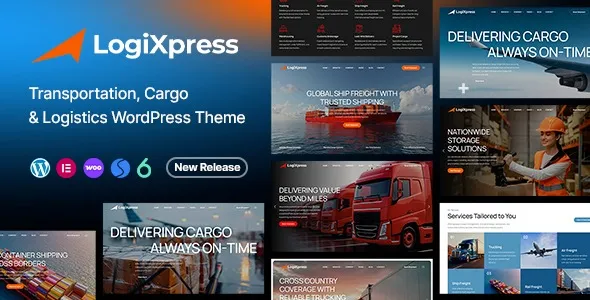
LogiXpress Transportation, Cargo & Logistics WordPress Theme is built for logistics companies that need a credible web presence fast, without hand-building every service page, lane, and quote flow from scratch. In practice, it gives you a structured set of layouts and theme-level components that make shipping, freight, warehousing, and courier services easy to present in a consistent way.
What it does not do is run your operations. I have seen teams assume a logistics theme will handle live rate calculations, carrier label generation, or dispatch automation. LogiXpress can support those workflows visually and through integrations, but the operational layer still comes from your plugins, CRM, or external systems.
The common failure pattern is not design. It is clarity. Visitors land on “Services” and still cannot answer basic questions: what you ship, where you ship, how fast, and how to request a quote.
With LogiXpress, the biggest win is the repeatable structure. You can build a service page template once, then clone it across freight types and regions without the content turning into a wall of text. When we rebuilt a multi-location courier site, the theme’s layout consistency reduced editorial back-and-forth because stakeholders could review a predictable page format.
That said, the theme only helps if you commit to a content model. If every page tries to be everything, the theme cannot save conversion.
Logistics sites tend to change weekly. New routes, seasonal capacity, updated cut-off times, or a new warehouse opening. LogiXpress works best when you treat pages as modular blocks you can swap rather than redesign.
A mistake I see in freight websites is creating 30 near-identical pages for “Air Freight in City X”, “Air Freight in City Y”, and so on. Google often reads that as duplicate intent.
Instead, use the theme’s consistent layout to keep structure stable, but make each page earn its existence. Add lane-specific constraints, customs documentation notes, packaging rules, or local pickup windows. The theme’s presentation makes these differences easier to surface without making pages look messy.
Most users do not read. They scan, then look for a clear next step. LogiXpress is designed around strong calls-to-action and predictable placement, which matters when you are selling high-consideration services like freight forwarding.
We have had good results pairing the theme with a form plugin that supports conditional fields. For example: “What are you shipping?” can branch into pallet vs. parcel, then show dimensions fields only when needed.
Theme demos often hide the messy part: aligning global styles, header behavior, and typography across devices. On a live logistics site, the header is your navigation system. If it shifts or grows unexpectedly, your conversion rate drops.
The two issues I have had to fix most often after initial setup are:
If you enable sticky headers and also use a tall top bar, some pages will show content hidden under the header on mobile. The fix is usually a combination of adjusting the header height and adding consistent top padding to the page container. Do this early, before you publish dozens of pages.
Logistics companies love nested menus. “Services” becomes five layers deep and nobody can find anything. The theme can display complex menus, but usability suffers. A better approach is a simpler top-level menu and a strong internal linking block on each service page.
You can build a logistics site with almost any modern WordPress theme. The difference is how much manual editorial work you will do to make pages feel “logistics-native”. With a generic corporate theme, you usually end up forcing icons, sections, and copy into layouts that were designed for agencies or SaaS.
LogiXpress already assumes your audience cares about coverage, reliability, timelines, and compliance. That assumption changes the default page rhythm. It is easier to publish pages that answer operational questions without turning the design into a spreadsheet.
If you are comparing it to a barebones starter theme, the trade-off is that you will spend less time on layout decisions, but you must be more disciplined about content quality. A strong theme makes weak copy look more obviously weak.
If you are looking for LogiXpress Transportation, Cargo & Logistics WordPress Theme download options, treat the process like you would treat a production deployment. A rushed install is where most problems start.
Update WordPress core, your PHP version, and your database backups. I also recommend disabling caching and optimization plugins temporarily so you can see styling and scripts load correctly during setup.
In WordPress, go to Appearance, then Themes, then Add New, then Upload Theme. Upload the installable theme ZIP, not the full download bundle if it contains documentation and multiple archives. If the upload fails, it is often because you chose the wrong ZIP.
After activation, install only the plugins the theme requires for core layouts. Do not install every optional add-on immediately. We usually add the minimum first, confirm the site is stable, then add extras one by one.
Demo import is useful for layout reference, but it can create clutter. Import a single homepage variant and one service page template, then build your own pages from those. This avoids leaving placeholder posts, media, and menus that later get indexed or linked internally.
Before writing content, set typography, button styles, and container widths. Then test at least: homepage, a service page, a contact/quote page, and a blog post. Fix header spacing and mobile issues now, not after content is live.
Re-enable caching and minification carefully. If a script breaks, roll back the last change. Themes with rich visual components can be sensitive to aggressive JavaScript deferral.
Yes, especially if you need clear service pages and a quote/contact flow. Keep the navigation simple and focus on coverage area pages that contain real local details, not thin location swaps.
It can handle multi-service presentations well. The key is to create a consistent template for each service line and ensure each page includes unique constraints, documentation notes, and transit expectations.
Usually, global settings did not import exactly, or a required plugin was skipped. Check that all theme-recommended plugins are active, then verify header and typography settings. Also, confirm your image sizes match the demo’s aspect ratios.
Most teams do. The theme can style forms, but it is not a quoting engine. Use a form plugin that supports conditional logic and file uploads if you need users to send packing lists or shipment photos.
Do not create pages that only change the city name. Build fewer, deeper pages that reflect real operational differences. When you do create location pages, add unique pickup rules, service windows, local compliance notes, and internal links to relevant services.
It depends on how much of the visual stack you enable and how heavy your images are. In my experience, the biggest speed gains come from compressing hero images, limiting sliders, and being careful with animation settings on mobile.
Geotoko is a trusted GPL website for WordPress themes, plugins, Shopify templates, and free giveaways. Download original, secure GPL files with lifetime updates.
All products on Geotoko are fully licensed under the GNU General Public License (GPL) and are independently reviewed for safety and quality.