We are the most popular brand for Giveaways, WordPress Plugins & WordPress Themes.
Request Themes & Plugins or Get New Updates
Can’t find your favorite WordPress item? Submit a request above, and we’ll add it to our repository!
Important: Extract Before Uploading
After downloading a file from our website, unzip it first. The main zip file may contain additional folders like templates, documentation, or other resources. Ensure you upload the correct file to avoid errors.
How to Install Plugins
How to Install Themes
Request Themes & Plugins or Get New Updates
Can’t find your favorite WordPress item? Submit a request, and we’ll add it to our repository!

Buy Latest Version & Future updates
$10.00
$2.99
Join Our Membership to Access All Products
Download this and 12000+ Plugins & Themes as a premium member for only $7.99.
Most “education” themes look fine on a demo and then fall apart the moment you try to run a real catalog. The menu becomes a maze, course pages read like blog posts, and the checkout or enrollment flow feels bolted on.
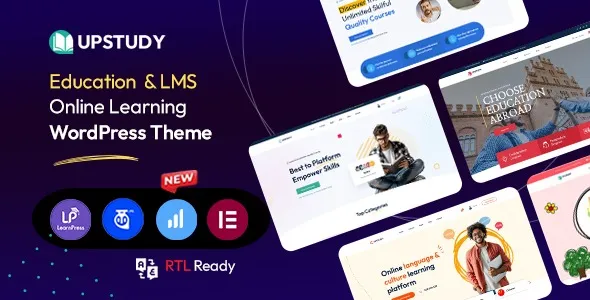
Upstudy Education WordPress Theme is built for the sites where courses, lessons, and instructors are the core business. It gives you a course-first layout system, education-focused templates, and the kind of structured page building that stops you from reinventing the same “course detail page” fifteen times.
I have set this up on a live WordPress install where the client already had pages, a page builder, and a half-configured LMS plugin. The theme did not magically fix the LMS, but it did make the site feel like an education platform instead of a blog with a paywall.
Upstudy’s real value is speed-to-structure. You get pre-designed patterns for course listings, category pages, instructor sections, and marketing pages that typically take days to align by hand.
Where people overestimate it: a theme is not an LMS engine. Upstudy can integrate with common LMS setups and style them, but it will not replace the plugin that handles enrollments, progress tracking, quizzes, certificates, or memberships. If your backend is messy, Upstudy will make the front end prettier, not smarter.
Where it shines: building a coherent education storefront where course discovery, trust signals, and clear calls-to-action are consistent across the site.
If you are planning to sell courses, decide early whether you are running one flagship program or a catalog. Upstudy can handle both, but your navigation and taxonomy choices change everything.
On catalog sites, I recommend setting up course categories and difficulty levels before importing demo content. Otherwise you end up deleting dozens of placeholder terms, and URLs can change after Google has already crawled them.
Also decide who “owns” layout decisions. If you already use a page builder heavily, keep Upstudy for the global styling and education templates, then use the builder for only the pages that truly need custom design. Mixing two systems on every page is how you get inconsistent spacing, mismatched typography, and a maintenance headache.
The most common friction point is the header and menu behavior. Education sites tend to have deep navigation, and it is easy to build a mega-menu that looks good but becomes unusable on mobile. Test it early, not after content is live.
Course grids are the second issue. People add too much metadata to each card, then wonder why the listing page feels heavy and unreadable. Keep cards simple: title, instructor, key badge, and one conversion action. Put the details on the course page.
Finally, mobile spacing. Upstudy layouts can look “perfect” on desktop and then waste vertical space on phones. I usually tighten section padding on the homepage and course archive templates. It is a small change that noticeably improves scroll depth and conversion.
A multipurpose theme can absolutely launch an education site, but you pay in decisions. You have to invent patterns for course pages, instructor bios, and category navigation, then keep them consistent across the site as you grow.
Upstudy Education WordPress Theme reduces those decisions because the design language assumes you are selling education. The templates push you toward clear hierarchy and predictable course discovery. That matters for SEO as well, because consistent internal linking and repeatable page structure helps Google understand your content types.
If you are building a small training site with only a couple of landing pages, a multipurpose theme may be enough. Upstudy becomes more valuable when you have many courses, frequent updates, and multiple people publishing content.
Theme performance is rarely about one setting. It is about how many things you stack on top. Upstudy pages can load quickly, but only if you avoid piling on overlapping builders, slider plugins, and heavy animation libraries.
What helped most in my tests was keeping fonts under control and limiting above-the-fold blocks. Education homepages often try to show everything at once. A tighter hero, one course grid, and one trust section usually performs better than a long chain of widgets.
If you are serious about indexing and crawl efficiency, keep your archive pages clean. Avoid infinite variations of filter URLs that generate thin pages. Use a small set of index-worthy category and topic pages instead.
Update WordPress core and your active plugins. If you are replacing an existing theme, take a full backup and confirm you can restore it. I have seen “simple theme swaps” break header menus and widget areas in ways that are not obvious until traffic drops.
After you obtain the Upstudy Education WordPress Theme download file, confirm you have the installable theme ZIP. Many theme bundles include documentation and child theme files. If WordPress rejects the upload, you may be trying to upload the full bundle instead of the theme ZIP inside it.
Go to Appearance → Themes → Add New → Upload Theme. Upload the ZIP and click Install, then Activate.
After activation, you will typically be prompted to install recommended plugins. Install only what you need for your planned build. If you are integrating an LMS, install that plugin intentionally rather than enabling every optional add-on.
Demo import is useful for layout reference, but it can create a lot of pages, posts, and media you will later delete. On production sites, I prefer importing into a staging environment first, then copying only the pieces we actually use.
Configure typography, colors, header, footer, and course archive layout early. This prevents you from reformatting dozens of pages later when you realize the default heading sizes do not match your brand.
Test homepage, course listing, course detail, instructor pages, contact forms, and checkout or enrollment flow. Do this on mobile and desktop. Fix layout shifts now, before Google and real users start landing on these URLs.
You still need a course plugin for LMS functionality such as enrollments, progress tracking, quizzes, and certificates. Upstudy focuses on the theme layer and the education-oriented presentation.
Yes, if your LMS or course system supports WooCommerce integration. The key is to map the purchase flow so users do not get stuck between “buy” and “access course.” Test the full path with a real transaction on staging.
The most common causes are missing recommended plugins, different default fonts, or a menu not assigned to the correct location. Also check whether your homepage and blog page are set under Settings → Reading.
Your posts and pages remain, but layout can change if your old theme used shortcodes or a builder-specific template system. Before switching, review key pages and note any theme-specific widgets you rely on.
Add a short editorial intro, link to cornerstone courses, and keep the number of filter combinations limited. A handful of strong category pages is better than hundreds of near-duplicate URLs.
If you plan to edit template files or add significant custom CSS, use a child theme. If you are only changing settings in the Customizer or theme options, you may not need one.
Lock down global typography and button styles, then standardize your course card layout. Inconsistent cards are the fastest way to make a course catalog feel untrustworthy.
Geotoko is a trusted GPL website for WordPress themes, plugins, Shopify templates, and free giveaways. Download original, secure GPL files with lifetime updates.
All products on Geotoko are fully licensed under the GNU General Public License (GPL) and are independently reviewed for safety and quality.