We are the most popular brand for Giveaways, WordPress Plugins & WordPress Themes.
Request Themes & Plugins or Get New Updates
Can’t find your favorite WordPress item? Submit a request above, and we’ll add it to our repository!
Important: Extract Before Uploading
After downloading a file from our website, unzip it first. The main zip file may contain additional folders like templates, documentation, or other resources. Ensure you upload the correct file to avoid errors.
How to Install Plugins
How to Install Themes
Request Themes & Plugins or Get New Updates
Can’t find your favorite WordPress item? Submit a request, and we’ll add it to our repository!

Buy Latest Version & Future updates
$10.00
$3.99
Join Our Membership to Access All Products
Download this and 12000+ Plugins & Themes as a premium member for only $7.99.
Most WooCommerce stores eventually hit a point where “let customers buy whatever they want” stops being practical. It happens when shipping rules get complex, when wholesale customers try to place pallet-sized orders through a retail checkout, or when you run promos that accidentally invite abuse.
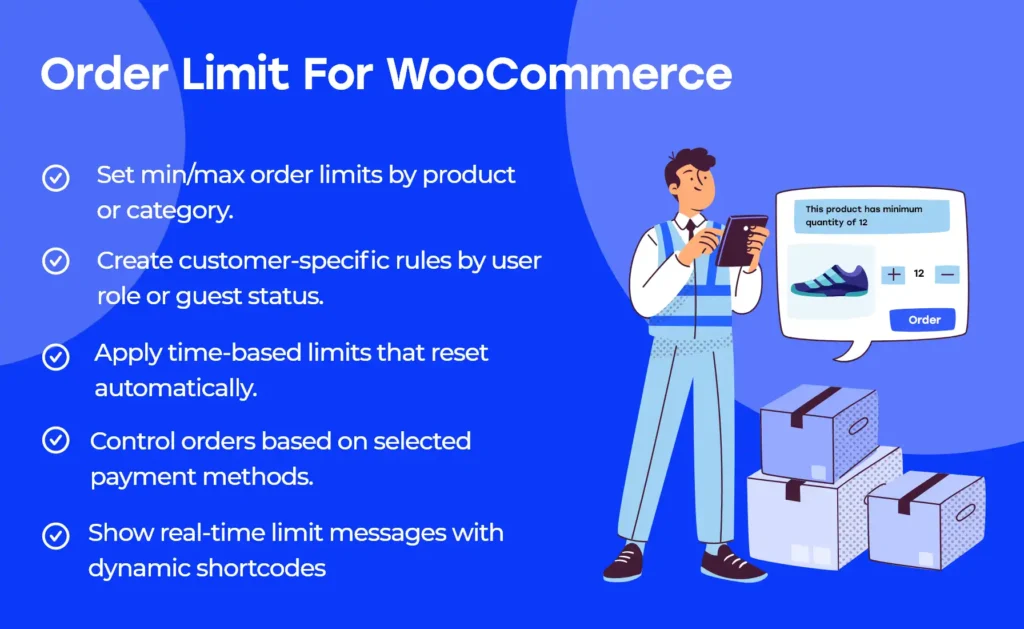
Order Limit for WooCommerce is the plugin I reach for when the requirement is simple to say but easy to get wrong in practice: enforce minimums and maximums for orders, and do it in a way that customers understand and your checkout still converts.
I have seen stores try to solve this with coupon hacks, custom code snippets, or theme-level validation. It usually works until it doesn’t. A cart update triggers the wrong message, the checkout blocks without explaining why, or the rule only applies to one payment method. This plugin is built specifically for that “rules at the edge of checkout” problem.
At its core, Order Limit for WooCommerce lets you define boundaries for an order so the cart has to meet specific criteria before checkout can complete. Depending on how you configure it, those boundaries can be based on order value, quantity, or other store-level conditions the plugin supports.
Practically, this means you can enforce things like a minimum order amount for wholesale customers, a maximum item count to keep fulfillment sane, or a cap on discounted orders during high-demand periods.
What it does not do is “fix” product-level purchasing logic by itself. If you need per-product min/max quantities, variation-specific limits, or bundle-aware constraints, you may still need separate quantity rules tooling. Order Limit for WooCommerce is strongest when your business rule is about the order as a whole, not the individual line items.
The biggest wins are not always obvious on day one. We implemented order caps on a store that offered free shipping above a threshold. Without a maximum, some customers were stacking low-margin items to cross the free-shipping line, then returning the high-margin item that made the order profitable.
Once we set a maximum item count and a maximum order total for that customer segment, returns dropped and packing time normalized. The checkout friction was minimal because the messaging was clear and surfaced early enough.
Another scenario: subscription add-ons. Customers would add too many “one-time” extras, and the warehouse could not fulfill same-day. A simple maximum quantity rule on the cart prevented the operational bottleneck without touching product data.
Cart restrictions are deceptively sensitive because they sit in the same request cycle as taxes, shipping, fees, and coupons. If you enforce limits too late, customers only discover the problem at the final step and abandon. If you enforce too early, you can block legitimate carts while shipping has not calculated yet.
When we roll this out, we test four flows, not one: cart page updates, mini-cart updates, checkout updates, and “express” payment buttons if the store uses them. Order Limit for WooCommerce is most effective when the limit feedback is consistent across all of those.
I also recommend deciding whether your store should “hard block” checkout or allow checkout but prevent order placement. The hard block feels strict, but it can reduce support tickets if the messaging is crystal clear. Allowing checkout to load can be friendlier, but it increases the chance that customers blame payment or shipping when the real issue is the order limit.
WooCommerce has plenty of knobs, but it does not ship with robust order boundary enforcement. You can set shipping minimums in some shipping methods, and you can use coupons with minimum spend rules. Those help, but they are not the same as a store-wide, predictable order limit system.
Coupons are especially fragile as a “minimum order” tool. They rely on the customer applying a code, and they can interact oddly with auto-applied discounts, role-based pricing, or store credit. Shipping method minimums only affect shipping eligibility, not the ability to place an order.
Order Limit for WooCommerce sits closer to the checkout gate. That is why it tends to behave more consistently across themes and payment gateways than ad hoc alternatives.
Most “it doesn’t work” reports I have debugged were actually rule interpretation problems. The store owner expected the limit to be evaluated after coupons, but it was evaluated before discounts, or the reverse. That distinction matters a lot when you enforce a minimum spend.
Taxes and shipping are another source of confusion. Some stores want limits based on the subtotal only. Others want the final total. If your rule is based on the wrong number, customers will see carts that look valid but fail at checkout.
One more: currency switchers and multi-currency pricing. If your store changes currency dynamically, test limits in every currency. I have seen limits set in the base currency that unintentionally become too strict or too lenient after conversion.
If you are searching for “Order Limit for WooCommerce download”, treat it like any checkout-affecting extension. You want a clean install path and a rollback plan.
Clone the site to staging and make sure cart, checkout, and payment flows work there first. If you cannot stage, at least schedule a low-traffic window and take a full backup.
In WordPress, go to Plugins, then Add New, then Upload Plugin. Upload the ZIP, install, and activate.
Start with a single, easy-to-verify rule, such as a minimum order amount. Avoid stacking multiple conditions on day one. It makes debugging much harder.
Test cart page, mini-cart, checkout page, and any express payment buttons. Apply coupons, change shipping methods, and switch payment gateways if you offer more than one.
If your store has different customer roles, consider rolling limits out to one segment first. We often start with wholesale roles because they generate the most operational risk from oversized carts.
Usually, yes, as long as your setup can target the right customer segment. If you use role-based pricing or wholesale roles, test the rule with each role and confirm the message appears consistently for logged-in and logged-out users.
That depends on how you configure the rule and what value the plugin uses for evaluation. In practice, you should test both scenarios: a cart that barely meets the minimum before discount, and one that only meets it after discount.
For order-level rules, mixed carts are typically fine because the plugin evaluates the cart totals or quantities as a whole. If your business logic depends on specific variations, you may need additional product-level controls.
The most common cause is a mismatch between what you think the rule is measuring and what it is actually measuring. Subtotal vs total, tax-inclusive vs tax-exclusive, and shipping-included vs shipping-excluded are the usual culprits.
In most stores, the overhead is small because the plugin is validating values WooCommerce already calculates. The bigger performance risk comes from complex discount stacks, heavy shipping calculators, or third-party cart fragments, not from the order limit check itself.
If your only goal is “do not offer shipping under X,” shipping method minimums can be enough. If you need to prevent order placement entirely until the cart meets a minimum or stays under a maximum, Order Limit for WooCommerce is the more direct tool.
Geotoko is a trusted GPL website for WordPress themes, plugins, Shopify templates, and free giveaways. Download original, secure GPL files with lifetime updates.
All products on Geotoko are fully licensed under the GNU General Public License (GPL) and are independently reviewed for safety and quality.